Manage your infrastructure server fleet — Linux servers over SSH and Windows servers over WinRM — from a single dashboard. Servers you add here become the deployment targets for Ansible configurations.
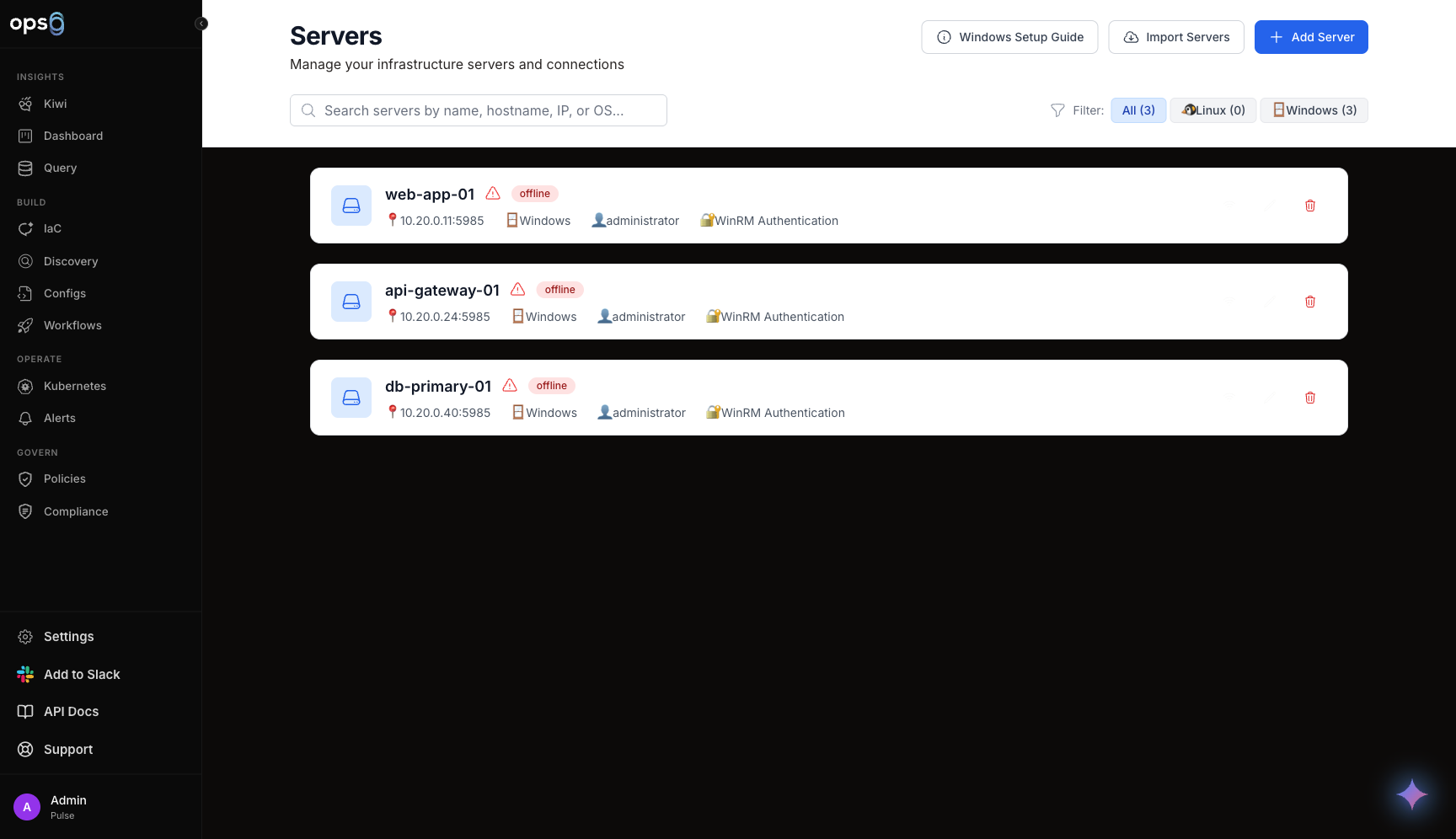
Servers is its own top-level area of ops0, linked directly from the main Dashboard (the Total Servers card). It is not nested under Settings.
A Server is a machine ops0 can reach and manage — either a Linux host over SSH (authenticated with a PEM key) or a Windows host over WinRM (authenticated with a username and password). Once a server is added, it can be:
Navigate to the top-level Servers page.
Click the Add Server button in the header.
Select Linux (SSH) or Windows (WinRM). Choosing a type sets sensible defaults — port 22 and username root for Linux, port 5985 and username administrator for Windows.
Fill in the Server Name, Hostname, IP Address, Port, and Username.
Select a Server Group to place the server in, or leave it ungrouped.
Submit the form. ops0 creates the server and immediately runs a connection test against it.
| Field | Description |
|---|---|
| Name | Display name for the server |
| Hostname | DNS hostname of the server |
| IP Address | IP address ops0 connects to |
| Port | SSH port (default 22) or WinRM port (default 5985 HTTP / 5986 HTTPS) |
| Type | Linux (SSH) or Windows (WinRM) |
| Username | Login user (root default for Linux, administrator default for Windows) |
| PEM Key | Private key used for SSH authentication (Linux only) |
| Operating System / Version | Detected automatically from a successful connection test |
| Group | The Server Group the server belongs to, if any |
| Status | online, offline, testing, or unknown |
| Last Seen | Timestamp of the most recent successful connection |
Every server can be tested on demand, and a test always runs automatically right after a server is created.
Click the connection/Wi-Fi icon on a server row to test it, or let the automatic test run at creation time.
For Linux servers, ops0 connects over SSH using the assigned PEM key. For Windows servers, ops0 connects over WinRM using the stored (encrypted) password.
On success, the server is marked online, lastSeen is updated, and the detected operating system and version are recorded. On failure, the server is marked offline and an error is shown.
Windows server passwords are encrypted before storage and only decrypted in memory to run a connection test. PEM keys are likewise decrypted only when needed to establish an SSH connection.
Each server card shows its name, status, IP address and port, OS type icon, username, detected operating system (once known), assigned group, and authentication method (PEM key name for Linux, "WinRM Authentication" for Windows).
| Status | Meaning |
|---|---|
| online | Last connection test succeeded |
| offline | Last connection test failed |
| testing | A connection test is currently in progress |
| unknown | No connection test has completed yet |
| Action | Description |
|---|---|
| Test Connection | Re-run the SSH/WinRM reachability check |
| Edit | Update server details, group, or credentials |
| Delete | Remove the server from ops0 (with a confirmation prompt) |
Instead of adding servers one at a time, you can import running instances directly from a connected cloud integration.
Click Import Servers in the header.
Select a cloud provider — AWS, Azure, Google Cloud, or Oracle Cloud — then choose which connected integration/account to pull instances from.
ops0 lists the provider's compute instances (name, instance ID, state, instance type, region, and private/public IP). Search by name, ID, or IP, and filter by All / Running / Stopped. Select individual instances or use Select All.
For each selected instance, confirm or adjust the username (a sensible default is pre-filled per provider — e.g. ec2-user for AWS, azureuser for Azure, opc for Oracle Cloud, Administrator for Windows) and provide a PEM key (Linux) or password (Windows).
Click Import to create servers for all selected instances. ops0 reports how many were imported, how many were skipped (already imported previously), and how many failed.
Instances already imported (matched by their cloud instance ID) are automatically skipped rather than duplicated.
Windows servers require WinRM to be enabled before ops0 can connect. A Windows Setup Guide button on the Servers page opens step-by-step PowerShell instructions:
Run Enable-PSRemoting -Force as Administrator to start the WinRM service and HTTP listener.
Add an inbound firewall rule allowing TCP port 5985.
Set the LocalAccountTokenFilterPolicy registry value so local (non-domain) accounts can authenticate over WinRM.
Run winrm set winrm/config/service/auth '@{Basic="true"}'.
Run winrm set winrm/config/service '@{AllowUnencrypted="true"}' to permit HTTP (port 5985) connections.
Port 5985 is unencrypted HTTP. For production environments, ops0 supports connecting over port 5986 (HTTPS) with a properly configured certificate instead.
Servers (and bulk import) are gated behind an organization-level feature flag. If the feature is not enabled for your organization, the Servers page shows a notice and the Add Server / Import Servers actions are disabled until support enables it for you.