Kiwi is ops0's platform-wide AI assistant. It has live access to your infrastructure context — incidents, vulnerabilities, policies, costs, and projects — and answers questions, explains what's happening, and helps you navigate the platform using plain English.
Kiwi is the home screen of ops0. The root URL (/) redirects there automatically after login.
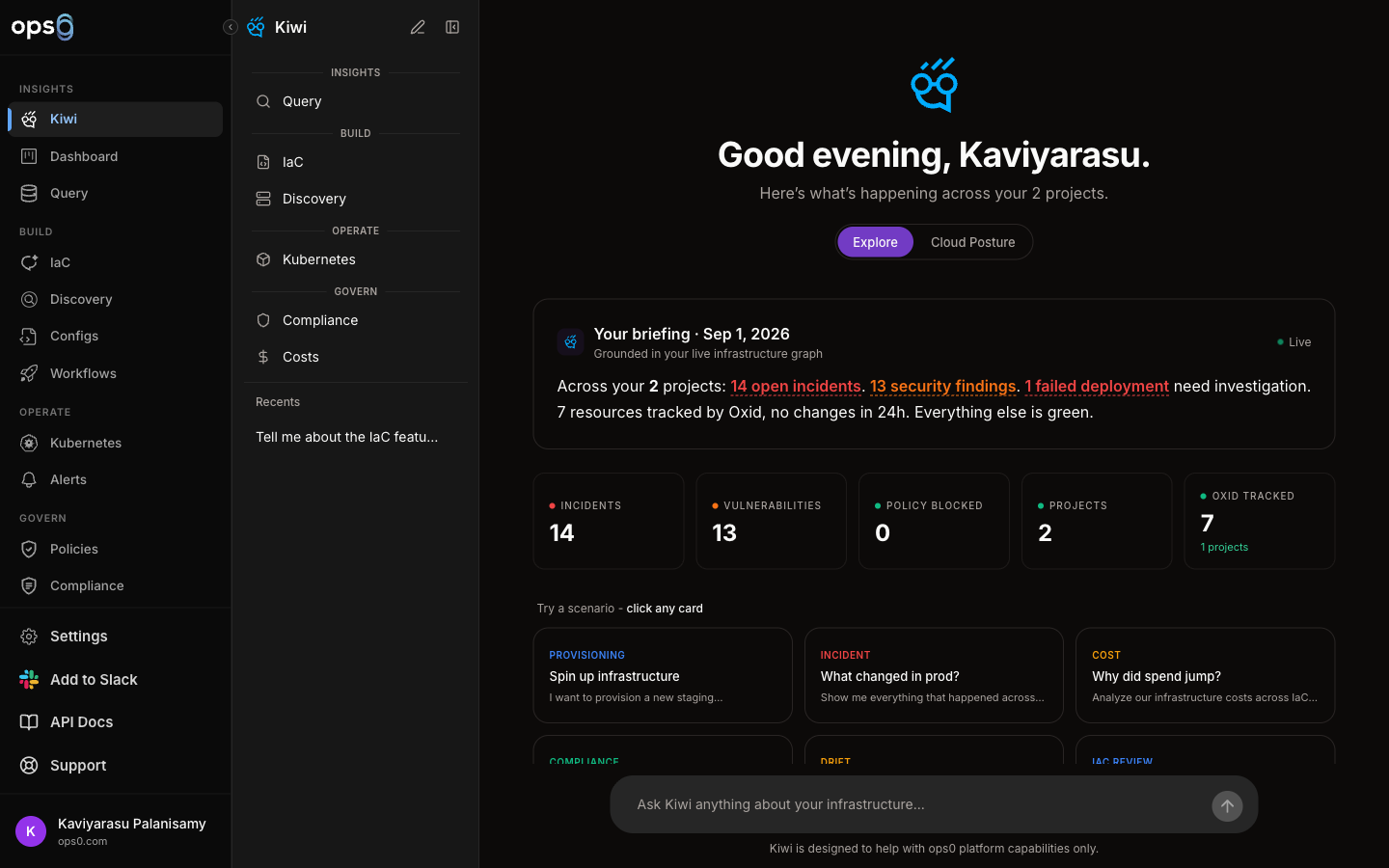
The Kiwi screen has three areas:
| Area | Description |
|---|---|
| Left sidebar | Conversation history — all past Kiwi sessions, searchable, with rename and delete |
| Main area | Current conversation — messages, welcome screen when no conversation is active |
| Input bar | Message input at the bottom |
When no conversation is selected, the welcome screen shows:
A live summary of your current infrastructure state:
These numbers update in real time. Click any signal card to navigate to the relevant section.
Nine pre-built conversation starters covering the most common workflows:
| Card | What it does |
|---|---|
| Provisioning | Help provisioning new infrastructure with Terraform |
| Incident | Investigate an active incident |
| Cost | Analyze cloud spending and find optimization opportunities |
| Compliance | Check policy status and compliance posture |
| Drift | Investigate infrastructure drift between IaC and live state |
| IaC Review | Review Terraform code before deployment |
| Kubernetes | Debug or manage a Kubernetes cluster |
| Onboarding | Get help setting up ops0 for the first time |
| Security | Investigate security findings and vulnerabilities |
Click any card to start a new conversation pre-loaded with that context.
Quick-access buttons for common tasks:
| Shortcut | Description |
|---|---|
| IaC | Jump to IaC projects |
| Query | Open the Query Console |
| Kubernetes | Open Kubernetes clusters |
| Compliance | Open compliance dashboard |
| Costs | View cost analysis |
| Discovery | Start a discovery scan |
Type any question in natural language. Kiwi has context about your organization's infrastructure and can answer questions like:
Kiwi responds with markdown-formatted answers. Code blocks, tables, and lists are all rendered inline.
| Shortcut | Action |
|---|---|
Enter | Send message |
Shift + Enter | New line in message |
↑ | Recall previous message from history |
↓ | Move forward through message history |
When Kiwi is working through a complex question, it shows a Thinking indicator — a collapsible panel that displays Claude's reasoning process in real time.
This feature uses Claude's extended thinking capability. The thinking content is not sent back — only the final response is shown in the main conversation.
Before sending a message, Kiwi scans the input for sensitive data patterns — API keys, passwords, private keys, credit card numbers, and other PII.
If sensitive data is detected:
[REDACTED])This protects against accidentally sending credentials or personal data to the AI model.
Click the New Chat button (pencil icon) at the top of the sidebar, or click any scenario card on the welcome screen.
All past conversations appear in the left sidebar. The sidebar shows the conversation title (auto-generated from the first message) and age. Use the search button to search across all conversation titles.
Click the ⋮ menu on any conversation → Rename → type a new title → press Enter.
Click the ⋮ menu → Delete → confirm. Deletion is permanent and cannot be undone.
Kiwi can:
Kiwi cannot:

