Server Groups let you organize your Servers fleet into logical collections — by environment, function, or team — so you can manage and target them together instead of one at a time.
A Server Group is a named collection of servers with an optional description and an optional default PEM key. Groups exist to:
Navigate to the Server Groups tab.
Click Create Group.
Provide a Group Name and an optional Description.
Choose a Default PEM Key. This key is used by default for new Linux servers added to this group.
Click Save to create the group.
| Field | Description |
|---|---|
| Name | Display name of the group |
| Description | Optional free-text description of the group's purpose |
| Default PEM Key | SSH key applied by default to new Linux servers placed in this group |
| Server Count | Number of servers currently in the group |
| Created | Date the group was created |
Each group card in the grid shows the group name and description, its default PEM key (if set), the number of servers it contains, and a preview of up to three member servers with their status indicator and IP address (with a "+N more" note if there are more).
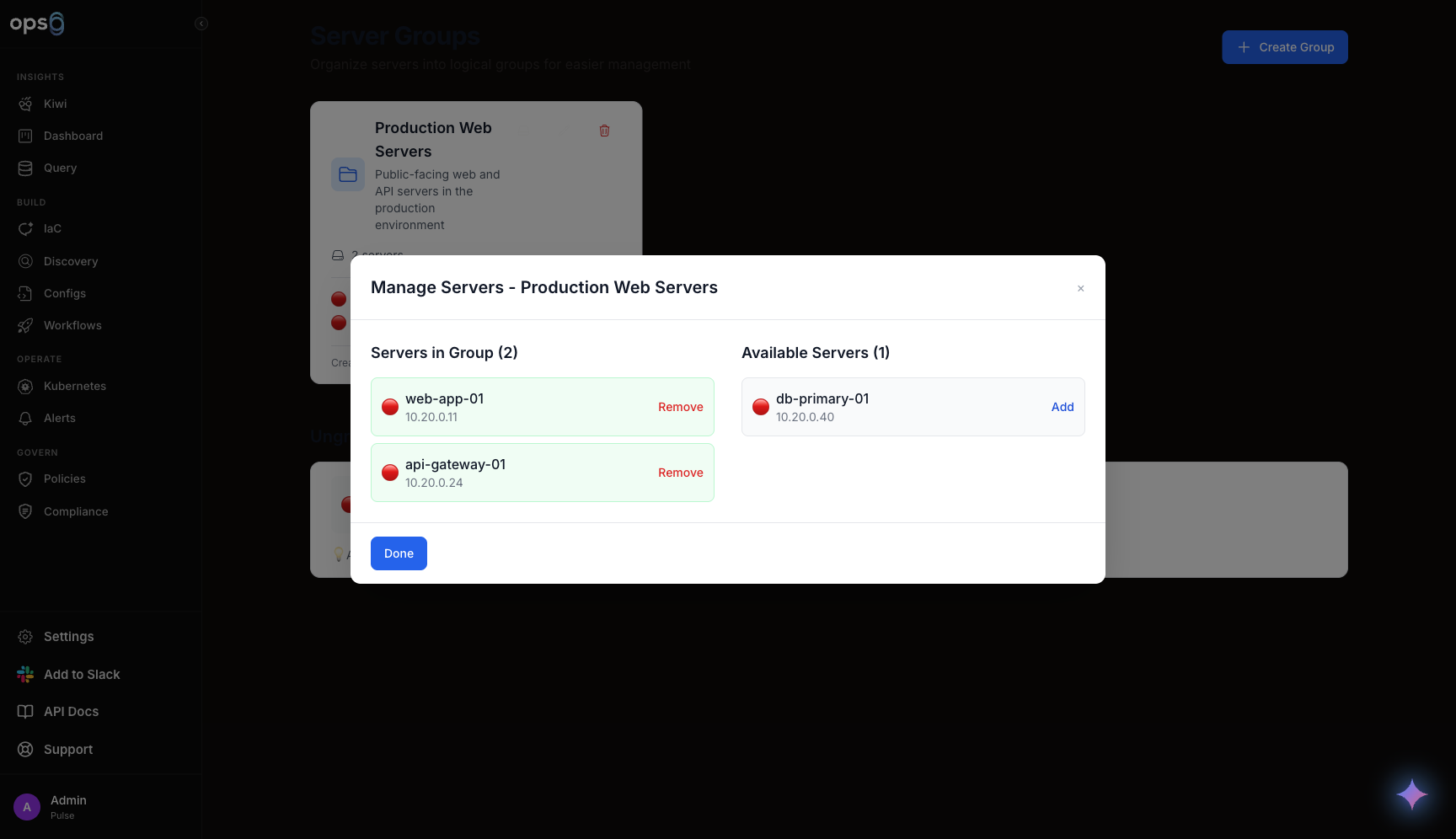
Click the server icon on a group card to open Manage Servers for that group.
The left panel lists servers currently in the group, each with a Remove action.
The right panel lists ungrouped servers, each with an Add action.
Click Add to move an available server into the group, or Remove to take a server out of the group (it becomes ungrouped, not deleted).
Click Done to close the dialog.
A server can belong to at most one Server Group at a time. Adding a server to a group updates its groupId; removing it clears that assignment.
Servers that have not been assigned to any group are listed separately in an Ungrouped Servers section below the groups grid, so you can quickly spot servers that still need to be organized.
| Action | Description |
|---|---|
| Manage Servers | Open the add/remove membership dialog |
| Edit | Update the group's name, description, or default PEM key |
| Delete | Remove the group (with a confirmation prompt) |
When creating a new Ansible Configuration project, you choose a Target Infrastructure mode of either Server Group or Individual Servers. Selecting Server Group lets you target every server in that group as the deployment target for generated playbooks, without picking each server individually.