The ops0 dashboard gives a real-time overview of your infrastructure health, deployment activity, and AI usage across all connected cloud accounts.
The dashboard is accessible from the sidebar under Dashboard. After login, ops0 opens Kiwi — the platform AI assistant — as the default home screen. The Dashboard is a separate page with a summary of your infrastructure health. All metrics update in real time — no configuration is required. What you see reflects the current state of your organization across every connected cloud account, region, and server.
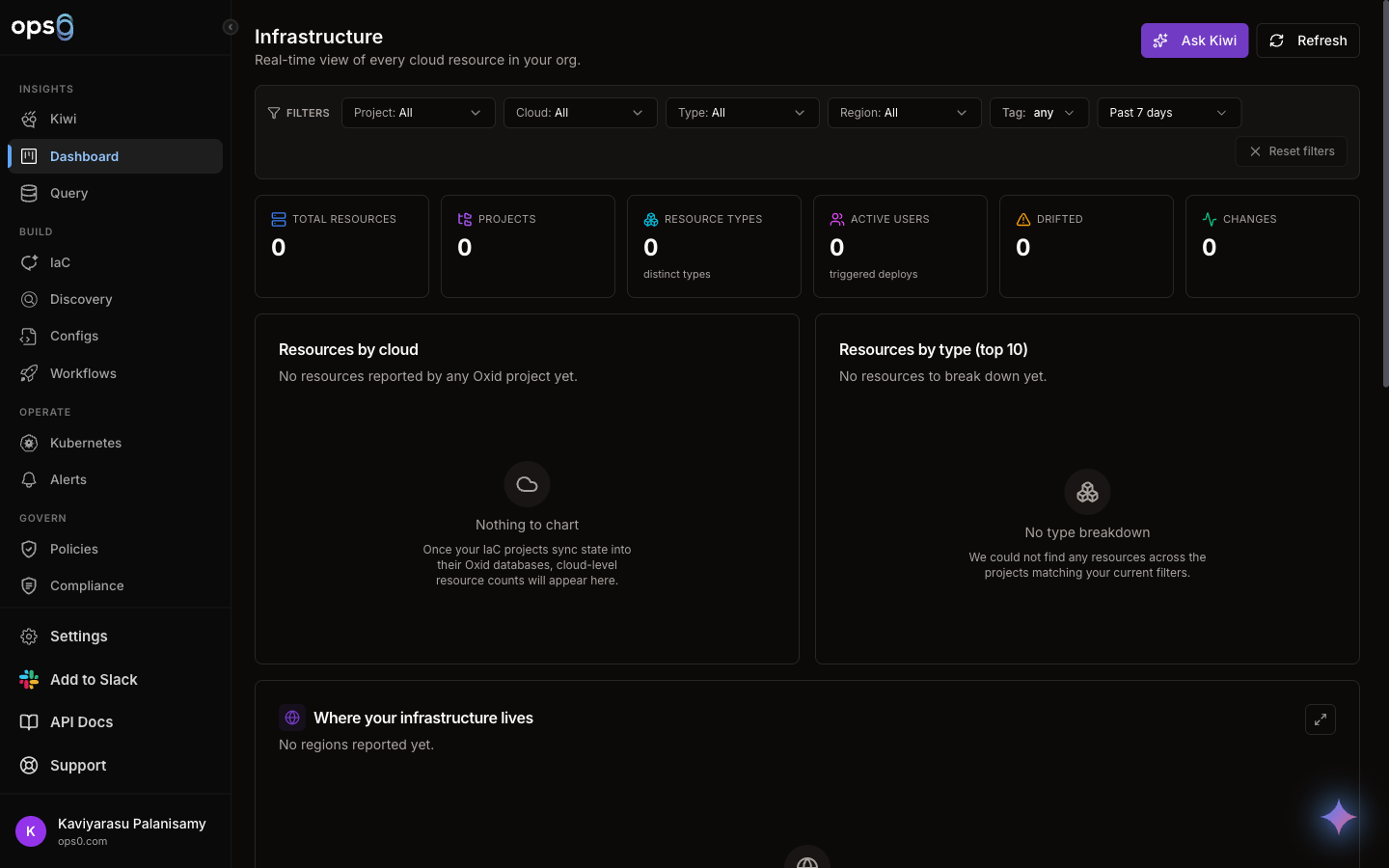
The top of the dashboard shows summary cards for the most important operational signals. Each card links to the full detail view for that area.
| Card | What It Shows |
|---|---|
| Servers | Total servers registered in ops0 and how many are currently online |
| Configurations | Total Ansible and Kubernetes configurations defined in ops0 and how many are in an approved state |
| Active Drifts | Number of servers or resources where the detected state no longer matches the expected configuration |
| IaC Deployments | Count of recent Terraform and OpenTofu deployments and their statuses: completed, failed, or in-progress |
A drift is detected when ops0 scans a server's running configuration and finds it differs from the approved configuration. The dashboard card shows the total number of active (unresolved) drifts. Click the card to see the full drift list filtered by status.
The dashboard shows data for your currently selected organization. If you belong to multiple organizations, switch organizations from the top navigation bar — the dashboard reloads to show that organization's metrics.
The activity feed shows the last 20 actions across your organization, in reverse chronological order. Each entry includes:
The activity feed is a read-only view of recent events. For full filtering, search, and export capabilities, go to Settings → Audit Logs.
The Recent Conversations section shows the last few Kiwi AI chat sessions started by members of your organization. Click any conversation to open it and resume from where it left off.
Each entry shows the conversation title (auto-generated from the first message), the user who started it, and how long ago it was last active.
The Quick Actions section provides shortcut cards to the most common first steps in ops0. These are especially useful for new team members getting oriented.
Scan a cloud account or region to discover and map all existing resources.
Create a Terraform or OpenTofu project and start provisioning infrastructure.
Add an AWS, GCP, Azure, or Oracle Cloud integration to ops0.
Invite a colleague and assign them a role in your organization.
Dashboard access is governed by your organization's OpenFGA permission model. By default:
| Role | Dashboard Access |
|---|---|
| Owner | Full dashboard — all metric cards, activity feed, and quick actions |
| Admin | Full dashboard — all metric cards, activity feed, and quick actions |
| Editor | Dashboard visible, but server-level detail (individual agent status) is restricted |
| Viewer | Dashboard visible, but server-level detail is restricted |
| No permission | Redirected to the default landing page for their role |
If you need to adjust what a role can see on the dashboard, contact your organization owner to update IAM role permissions in Settings → IAM.
Manage Terraform and OpenTofu projects and view deployment history.
Discover and map resources across your connected cloud accounts.
Ask Kiwi about your infrastructure health and recent activity.
Full activity history with filtering, search, and export.

