This page covers the developer-facing side of the Developer Portal: browsing the catalog, filling in a blueprint's request form, and tracking what happens after you submit.
The catalog is the Developer Portal's landing page. Each blueprint is shown as a card with its provision type, approval policy, version, and a metrics row (estimated monthly cost, vulnerability findings, and recommendations captured from the source project).
Use the search box to match blueprint name, description, or tags. Filter by provision type (All / Environments / Resources) or by cloud provider (AWS / Azure / GCP / Oracle).
Click a card to open the blueprint detail panel.
The detail panel has six tabs: Overview (description, owner, version, cost), Variables (every configurable field and its type), Guardrails (preset values per variable and whether they're locked), Pricing (cost drivers and the estimate captured when the blueprint was saved), Vulnerabilities (security findings from the source project's last scan, when available), and Diagram (the architecture graph built from the blueprint's IaC files).
Click the Request button in the panel header to open the Request Wizard.
The wizard is a 3-step flow: Configure → Review → Submit.
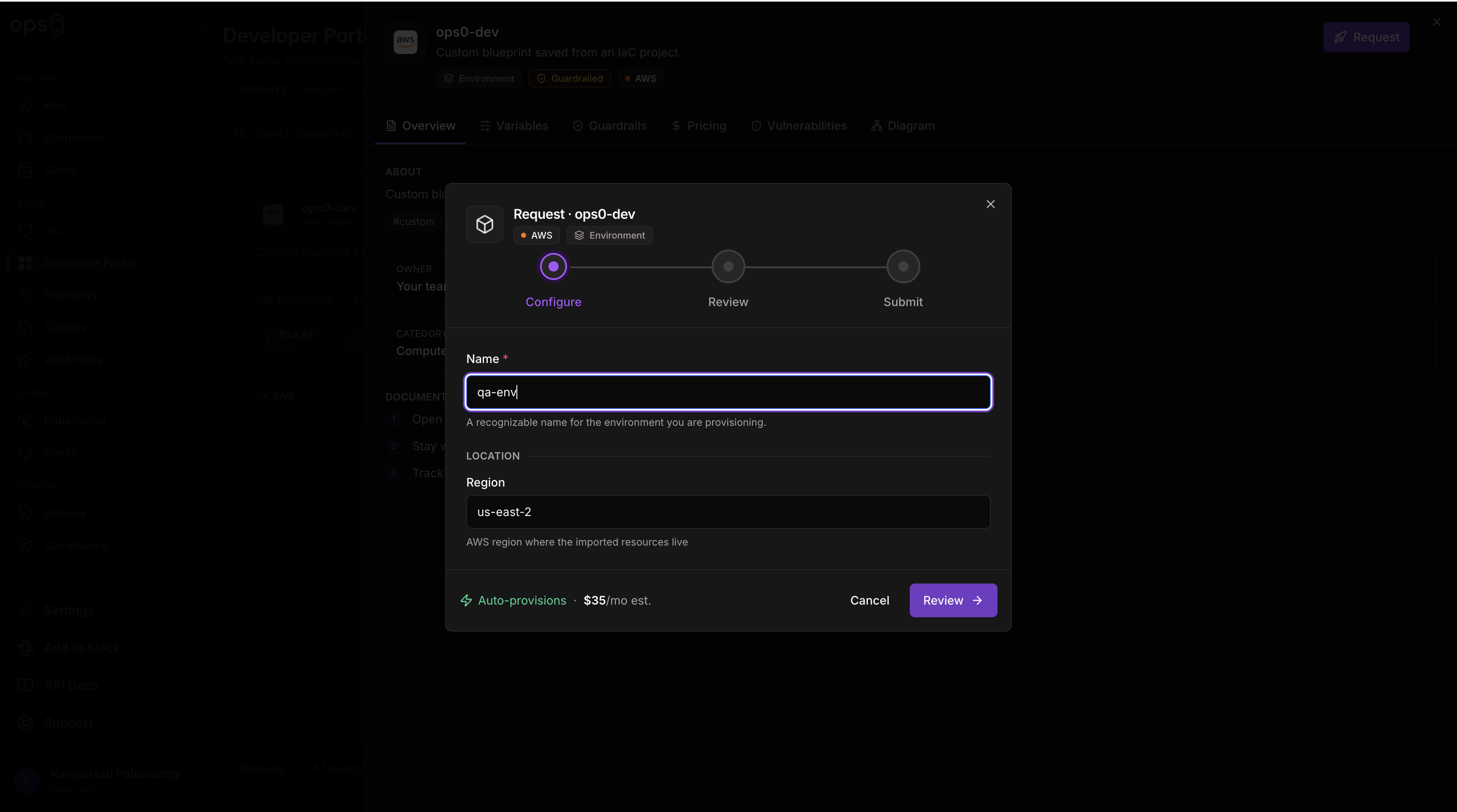
Give the environment or resource a Name (this becomes the project name). If the blueprint has multiple active versions, pick which one to provision from — it defaults to the latest. Then fill in each variable, grouped under the headings the blueprint author set (for example Location, Network, Compute).
Each field renders differently depending on how its author configured it:
As you fill in the form, any field whose value falls outside its guardrail is marked needs approval right next to the label.
The Review step shows a verdict banner — "Ready to deploy — no approval needed" or "This request needs approval" — along with a summary (name, blueprint, environment, estimated monthly cost) and every configured value, with a custom tag on any value that triggered the approval requirement. Click Edit to go back and change values without losing the rest of the form.
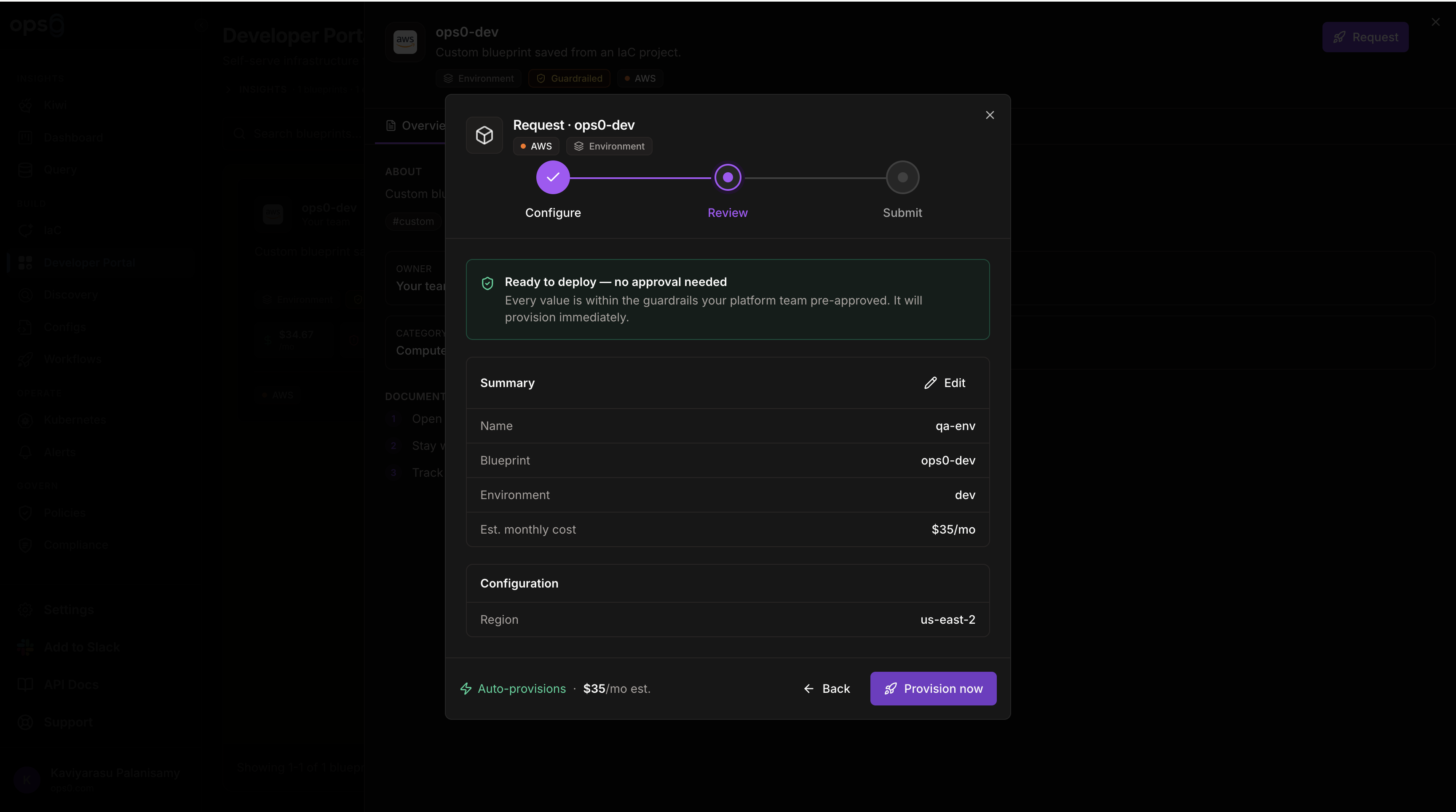
The footer shows a live indicator the whole time — Auto-provisions or Needs approval — next to the running cost estimate. The submit button label matches: Provision now for requests that will deploy immediately, or Submit for approval for ones that won't.
The running total in the wizard reacts to fields like instance size, storage, node count, and high-availability toggles, but it's a rough estimate — not a billing source of truth.
| Outcome | What you see | What happens |
|---|---|---|
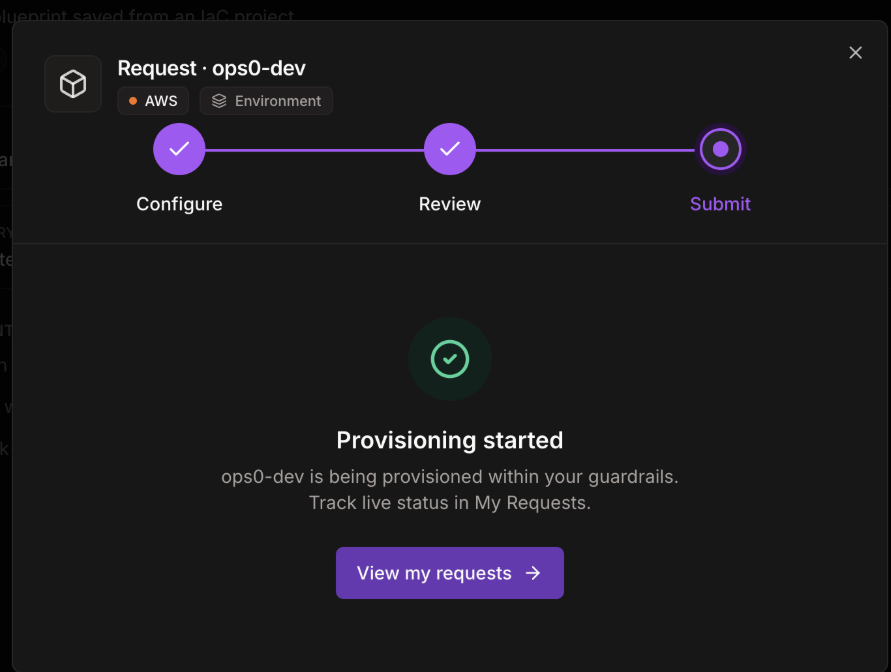
| Auto-provisions | "Provisioning started" | The request is created directly in the provisioning state and a deployment starts automatically |
| Needs approval | "Submitted for approval" | The request is created in pending_approval and waits in the approvals queue until an approver decides |
A request needs approval when the blueprint's approval policy is required, or when the policy is conditional and at least one submitted value fell outside its preset guardrail.
When a request auto-provisions, ops0 automatically runs a read-only Terraform plan against the generated project — it never applies. Review the plan and apply it from the project itself in IaC once you're satisfied with it.
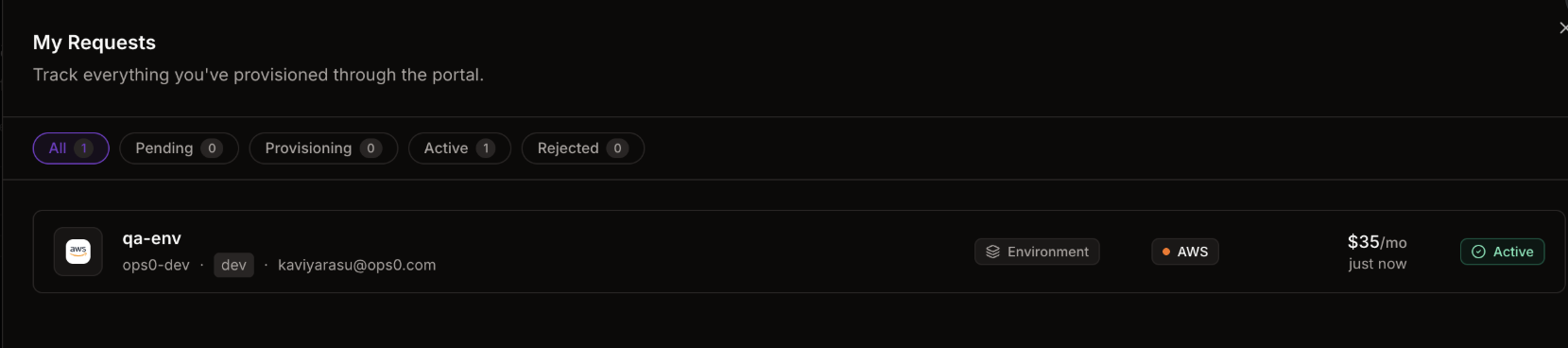
Open My Requests from the Developer Portal header to see everything you've submitted, filterable by status: All / Pending / Provisioning / Active / Rejected.
Opening a request shows four tabs:
| Tab | Contents |
|---|---|
| Overview | Environment, requester, request time, estimated cost, a note if custom values triggered approval, the approver's decision and note (once decided), and a link into the provisioned IaC project once one exists |
| Configuration | Every value you submitted |
| Deployment | Live status of the automatically triggered plan (and apply, once you run one), polling every few seconds while it's in progress |
| Activity | A timeline of everything that's happened to the request — created, submitted, approved/rejected, provisioning, active, or failed |
| Status | Meaning |
|---|---|
| pending_approval | Waiting in the approvals queue |
| approved | An approver signed off; provisioning is about to start |
| provisioning | The IaC project is being created and planned |
| active | The resource has been provisioned |
| rejected | An approver declined the request |
| failed | Provisioning did not complete successfully |