Any IaC project can become a self-service blueprint in the Developer Portal. This page covers the blueprint-author side: turning a working project into a governed, requestable catalog entry using Save as Blueprint.
This is different from starting a new project from a blueprint. Here you're taking a project you already built and publishing it as a blueprint others can request through the portal.
Opening Save as Blueprint on a project starts a 4-step flow: Details → Approval → Variables → Review.
Give the blueprint a Name and Description. The cloud provider is auto-detected from the project's linked cloud integration, not guessed from file contents. Choose the Category:
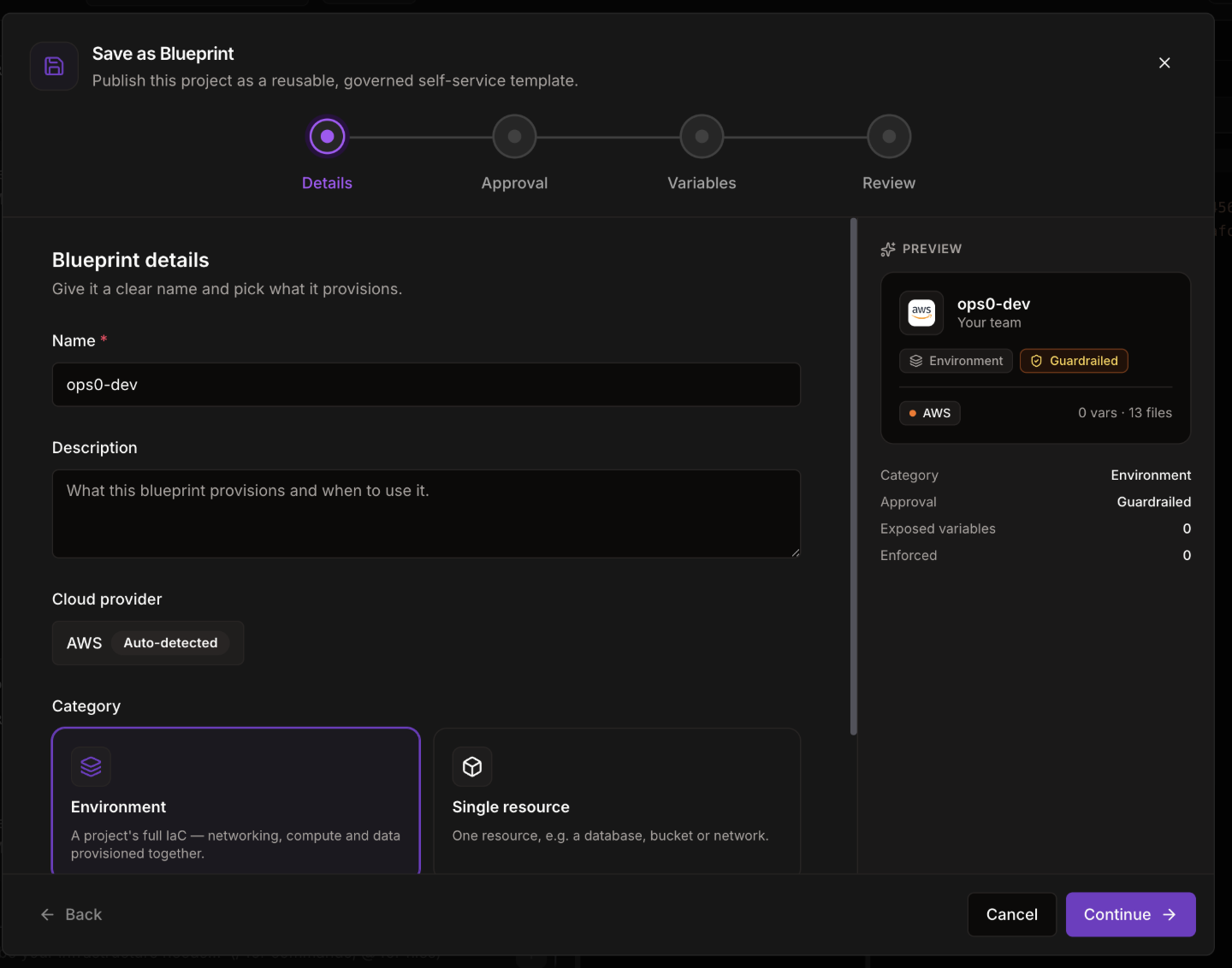
Choose the Self-service approval policy:
auto) — every request provisions instantly, no approver needed. Best for low-risk, fully guardrailed resources.conditional, recommended) — requests within your preset values deploy instantly; anything custom routes to an approver.required) — every request is reviewed regardless of values.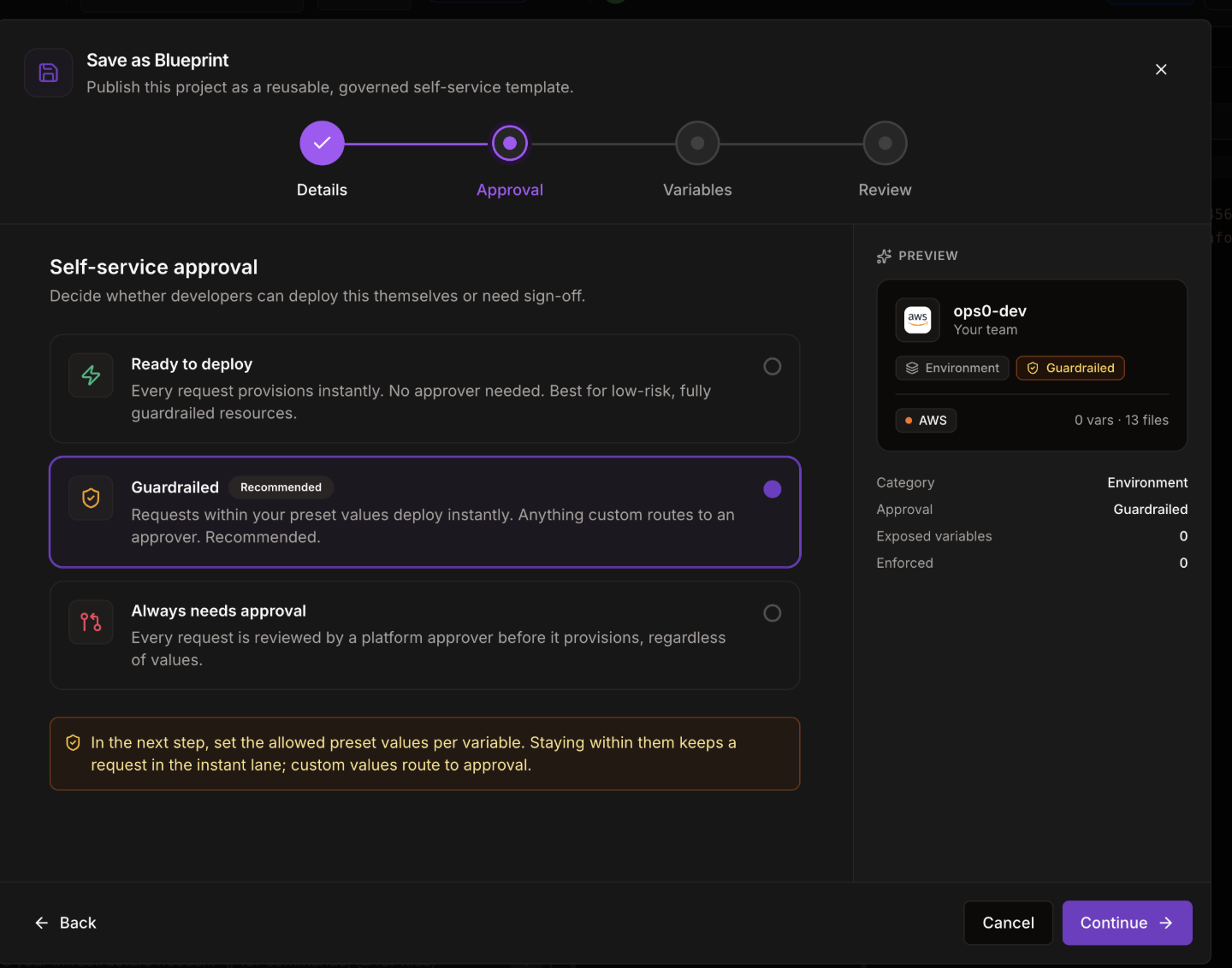
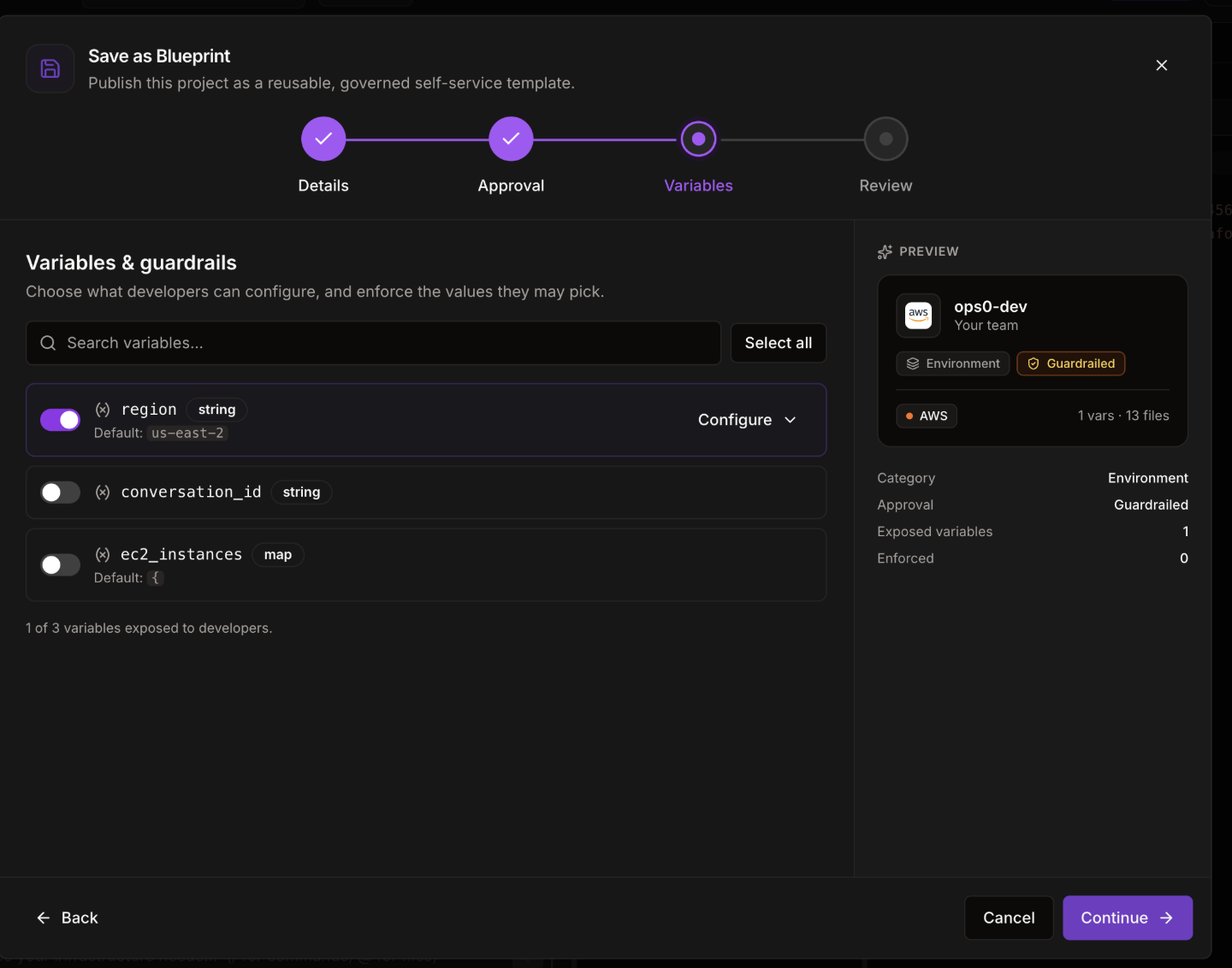
ops0 parses the project's Terraform variables. For each one you choose to expose, toggle it on and configure:
Variables commonly used for region, name, instance size, node count, and CIDR ranges are pre-selected automatically; you can select or deselect any variable individually, or use Select all / Deselect all.
Confirm the summary — name, cloud, category, approval policy, file count, and estimated monthly cost — plus the full list of exposed variables and how many are enforced to presets. Click Publish blueprint to save.
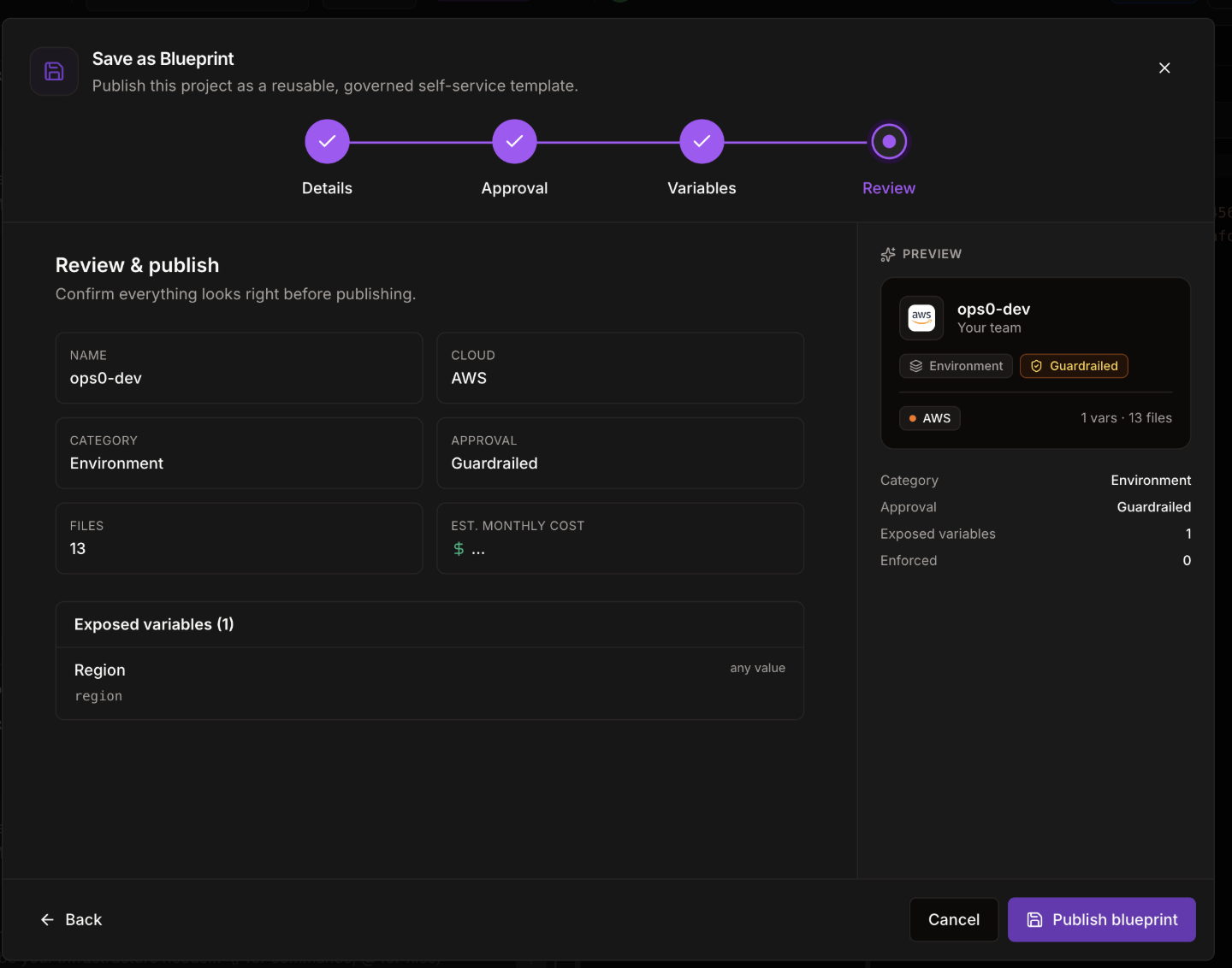
The monthly cost shown on the blueprint (in the catalog and on its Pricing tab) is a snapshot from when it was published or last re-saved — not a live number. Developers still see a variable-driven estimate that reacts to their choices in the request form itself.
| Setting | Request form behavior |
|---|---|
| No presets | Free-form text/number input, or a toggle for boolean fields |
| Presets, custom not allowed (enforced) | Dropdown limited to the preset values — always within guardrails |
| Presets, custom allowed | Quick-pick chips for each preset, plus a Custom option that flags the request for approval under a conditional policy |
For a boolean field, switching a toggle on when its default is off is treated as an escalation (for example, enabling Multi-AZ or zone-redundant HA) and can trigger approval the same way a custom value does.
Saving a blueprint again from the same project creates a new version rather than overwriting the previous one. The Save as Blueprint modal shows existing versions and lets you retire any of them — retired versions stay visible for history but can no longer be requested. Developers requesting a blueprint with more than one active version can choose which version to provision from, defaulting to the latest.
Once published, the blueprint appears in the Developer Portal catalog with its category badge, approval-policy chip, and version number. Its detail panel's Variables and Guardrails tabs reflect exactly what you configured here — which fields are exposed, which are locked to presets, and which allow a custom escape hatch. See Requesting Resources for how developers experience this on the other side, and Reviewing Requests for what an approver sees when a request needs sign-off.