Run a discovery scan to find existing cloud resources across AWS, GCP, Azure, and Oracle Cloud.
Choose AWS, GCP, Azure, or Oracle Cloud.
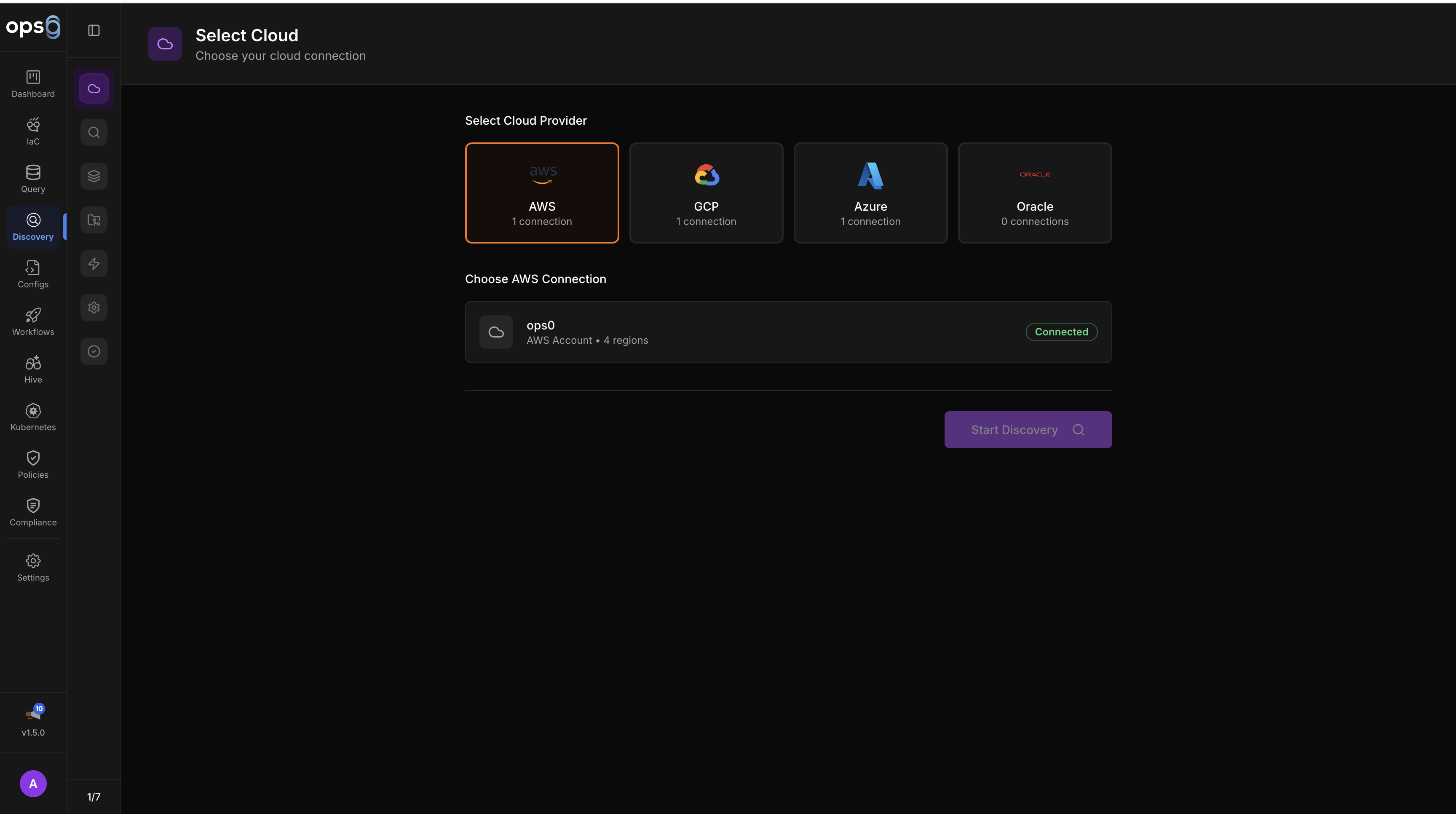
Select the cloud integration with credentials for this provider.
Set the scan mode, regions, and resource types.
Choose which resource types to scan (or use "Select Common" for typical resources).
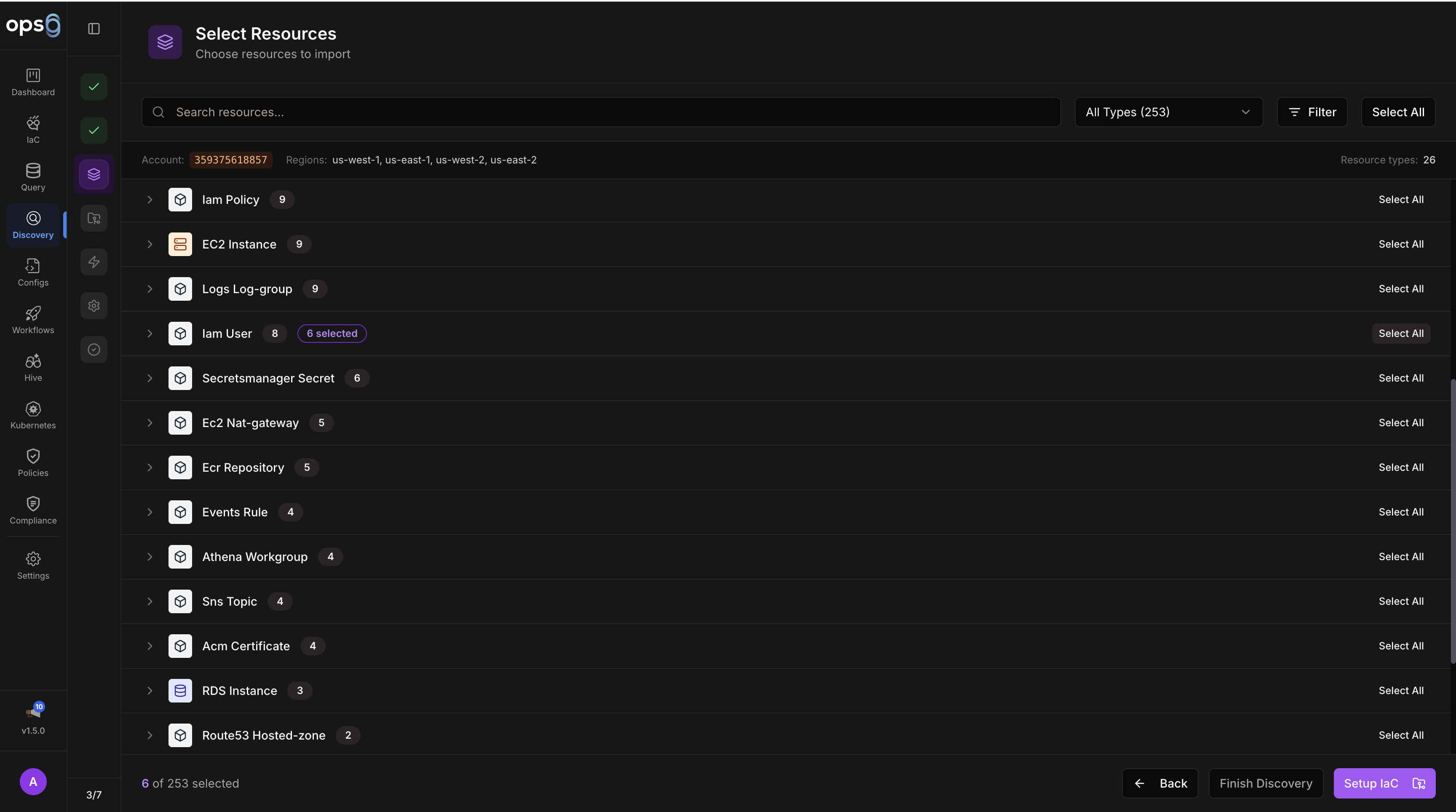
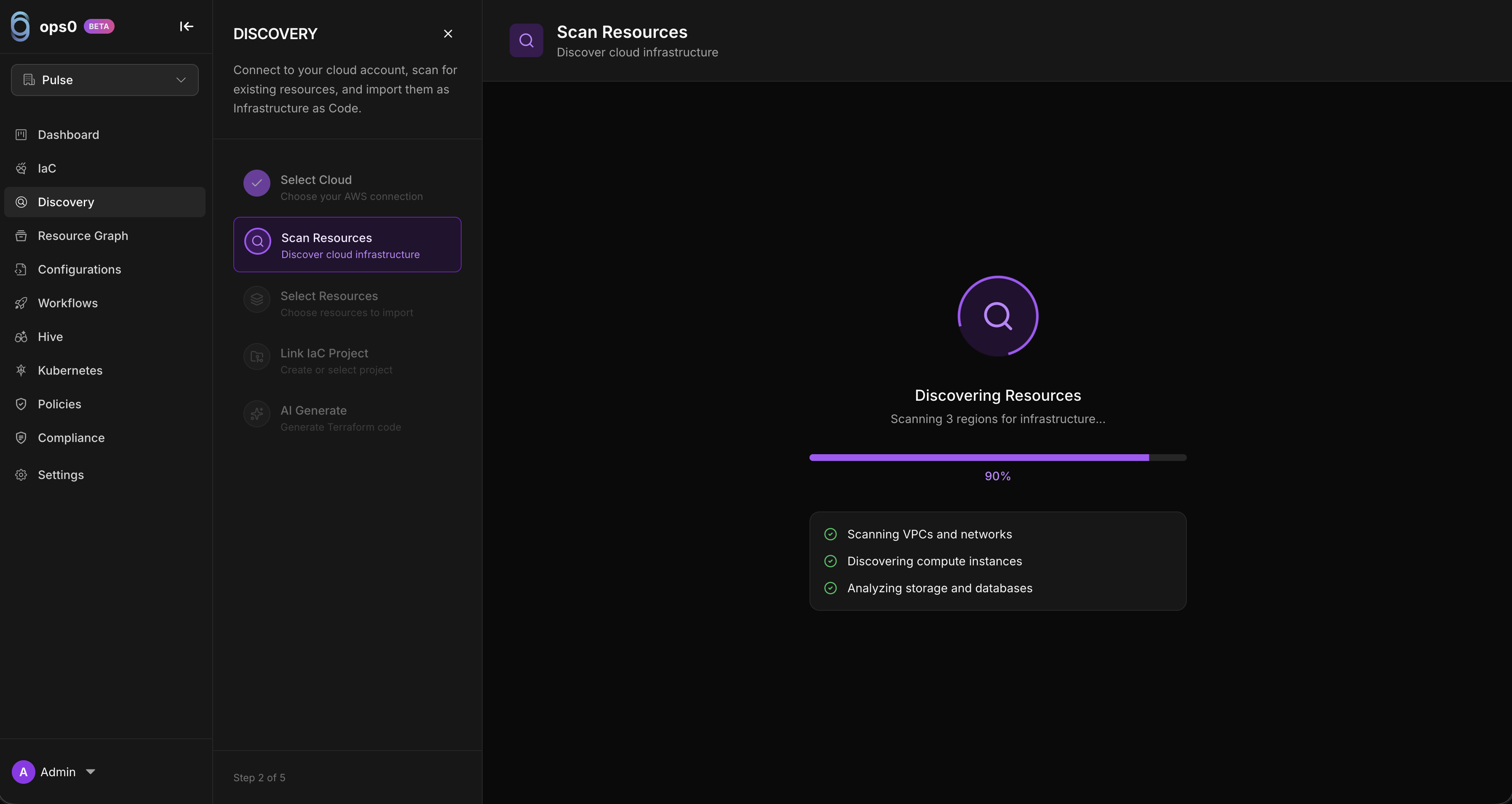
Review the configuration and start the scan.
Each provider has different scope options for controlling what gets scanned.
| Scan Mode | Description |
|---|---|
| Single Account | Scan resources in the configured AWS account |
| Organization | Scan all accounts in the AWS Organization |
| Selected Accounts | Scan specific accounts (with optional exclusions) |
Region Selection: Choose one or more AWS regions (us-east-1, eu-west-1, etc.). Supports multi-region and all-region scanning.
Required Permissions:
Describe* and List* for target resource typesorganizations:ListAccounts and sts:AssumeRole for organization scanning| Scope | Description |
|---|---|
| Project | Scan a single GCP project |
| Folder | Scan all projects under a folder |
| Organization | Scan the entire GCP organization |
Supports included/excluded project lists for folder and organization scopes.
Required Permissions:
cloudasset.assets.searchAllResources for discoveryresourcemanager.folders.list and resourcemanager.projects.list for folder/org scope| Scope | Description |
|---|---|
| Subscription | Scan a single Azure subscription |
| Management Group | Scan all subscriptions under a management group |
| Selected Subscriptions | Scan specific subscriptions |
Required Permissions:
Microsoft.ResourceGraph/resources/read for discoveryMicrosoft.Management/managementGroups/read for management group scope| Scope | Description |
|---|---|
| Compartment | Scan a single OCI compartment |
| Tenancy | Scan the entire tenancy |
Supports included/excluded compartment lists for tenancy scope.
Required Permissions:
The resource type selector shows all available resource types for the selected provider, grouped by category (Compute, Networking, Storage, Databases, Containers, IAM, etc.).
| Control | Description |
|---|---|
| Search | Filter the list by resource type name |
| Select Common | Pre-selects the most commonly needed resource types (VMs, VPCs, subnets, security groups, storage, databases) — a good starting point for a first scan |
| Select All | Select all available resource types for the provider |
| Deselect All | Clear all selections |
| Individual checkboxes | Select or deselect specific resource types |
Each resource type shows a count badge after a scan completes (number of instances found). This helps prioritise follow-up scans.
VMs, VPCs/VNets/VCNs, subnets, security groups or NSGs, storage, and databases.
Kubernetes clusters, serverless functions, IAM, load balancers, CDN, and higher-order platform services.
Long-running scans can be paused and resumed:
| Icon | Status |
|---|---|
| ✓ | Resource type completed |
| ● | Currently scanning |
| ○ | Pending |
| ✗ | Failed |
| Scope | Time |
|---|---|
| 1 region, basic resources | 1 to 2 min |
| 1 region, all resource types | 3 to 5 min |
| Multiple regions | 5 to 15 min |
| Organization-wide, all types | 15 to 30 min |
Set up AWS integration in the organization management account.
Select Organization scan mode in the discovery wizard.
Choose specific organizational units (OUs) or member accounts, or scan all.
ops0 assumes roles in each member account and scans resources.
Set up GCP integration with an organization-level service account.
Choose the folder hierarchy or organization root.
Optionally specify which projects to include or exclude.
ops0 enumerates all projects under the scope and scans each.
Set up Azure integration with management group access.
Choose the management group root or specific subscriptions.
ops0 discovers all subscriptions and scans resources.
Set up Oracle Cloud integration with tenancy-level API key access.
Choose tenancy-wide scanning or specific compartments.
Optionally specify which compartments to include or exclude.
ops0 enumerates compartments and scans resources in each.
Organize discovered resources into logical groupings before generating code.
Navigate to the completed discovery session.
Select resources to include in the project.
Set project name, description, and tags (environment, owner, application).
Use manual selection, filter by tag, filter by type, filter by region, or select by relationship (resource + all dependencies).
When creating a discovery project, configure the Terraform state backend:
| Backend | Description |
|---|---|
| S3 | AWS S3 bucket with optional DynamoDB locking |
| Azure Blob | Azure Storage Account for state files |
| GCS | Google Cloud Storage bucket |
| Local | Local filesystem (single user only) |
View past discovery jobs at Discovery → Job History:
Required IAM or cloud permissions are missing. Verify the integration has the read scopes needed for the selected provider and scope.
The provider is throttling API calls. Retry after a short wait or reduce the scan scope and resource types.
This usually means a network or credential problem. Test the integration in Settings and verify the credentials are still valid.
The scan is taking too long for the selected scope. Reduce regions or resource types, or use pause and resume for large inventories.

