After scanning, generate Terraform code for discovered resources and import them into IaC management. ops0 supports AI-assisted and direct code generation with multiple output formats.
Choose resources to import from the discovery session.
Group selected resources into discovery projects by environment, application, or team.
Select AI-assisted or direct Terraform generation.
Set up the Terraform state backend (S3, Azure Blob, GCS, or local).
Review the generated Terraform code before finalizing.
Create an IaC project, download as ZIP, or push directly to GitHub.
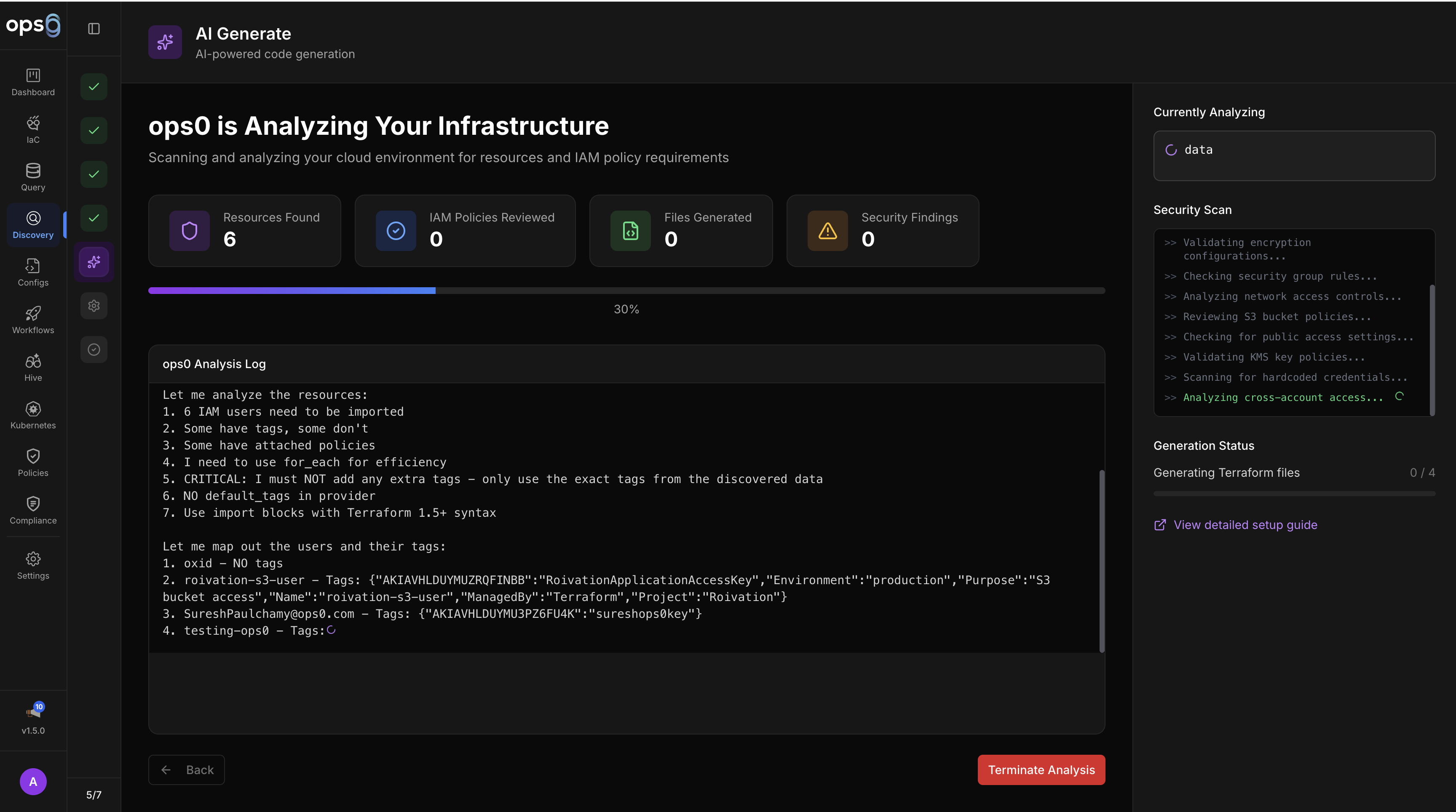
AI-powered code generation that produces optimized, production-ready Terraform:
The AI generation uses streaming output so you can watch the code being generated in real time. If issues are detected during security scanning, they appear inline with suggestions.
Generate Terraform code without AI, with progress tracking from 10 to 100 percent:
| Output Mode | Files Produced | Use Case |
|---|---|---|
| Single file | main.tf | Quick imports, small resource sets |
| Modular project | Organized into modules by resource type | Large environments, team collaboration |
| Flat import | main.tf + variables.tf + outputs.tf | Standard Terraform import workflow |
| Status | Meaning |
|---|---|
| Unmanaged | Not in any Terraform state; available for import |
| Managed | Already managed by Terraform; skip or re-import |
| Filter | Description |
|---|---|
| Type | Filter by resource type (EC2, VPC, RDS, etc.) |
| Region | Filter by cloud region/location |
| Tags | Filter by resource tags (Environment, Owner, etc.) |
| Search | Filter by name or resource ID |
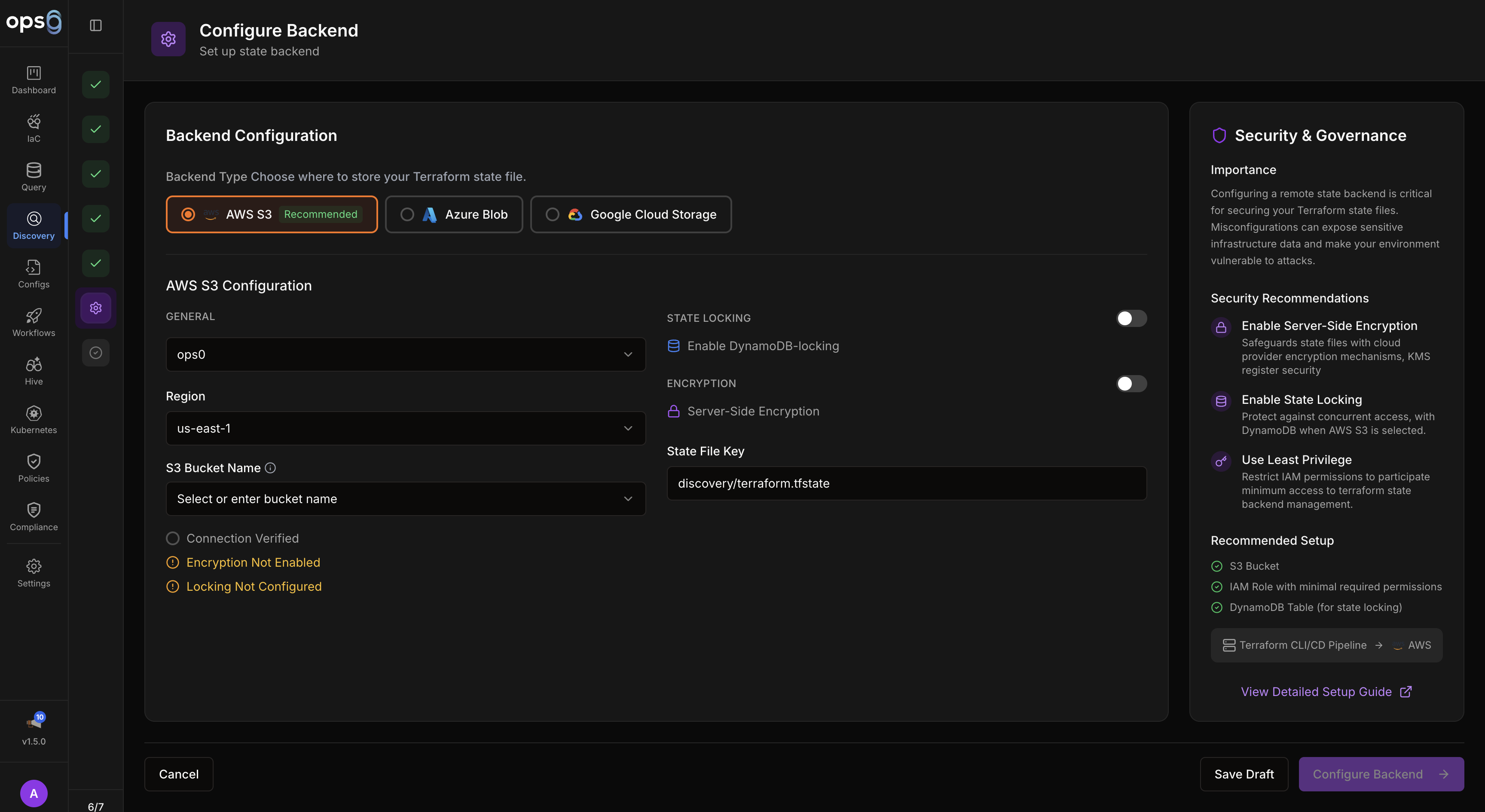
Configure where Terraform stores state for the imported resources:
| Backend | Configuration |
|---|---|
| S3 | Bucket, key, region, optional DynamoDB table for locking |
| Azure Blob | Storage account, container, key |
| GCS | Bucket, prefix |
| Local | Local filesystem path (single user only) |
Use S3, Azure Blob, or GCS for team environments. Local backends are suitable for individual testing only.
ops0 produces Terraform files with proper resource references and dependency ordering:
| File | Contents |
|---|---|
main.tf | Resource definitions with actual cloud configuration |
variables.tf | Variable declarations for configurable values |
outputs.tf | Output values for important resource attributes |
imports.tf | Import blocks for Terraform 1.5+ |
import {
  to = aws_vpc.main
  id = "vpc-0abc123def456"
}

resource "aws_vpc" "main" {
  cidr_block           = "10.0.0.0/16"
  enable_dns_hostnames = true
  enable_dns_support   = true

  tags = {
    Name        = "production-vpc"
    Environment = "production"
  }
}
When using modular generation, code is organized by resource type:
project-name/
├── main.tf
├── variables.tf
├── outputs.tf
├── imports.tf
└── modules/
    ├── networking/
    │   ├── vpc.tf
    │   ├── subnets.tf
    │   └── security_groups.tf
    ├── compute/
    │   └── instances.tf
    └── database/
        └── rds.tf
After code generation, choose where to send the produced Terraform:
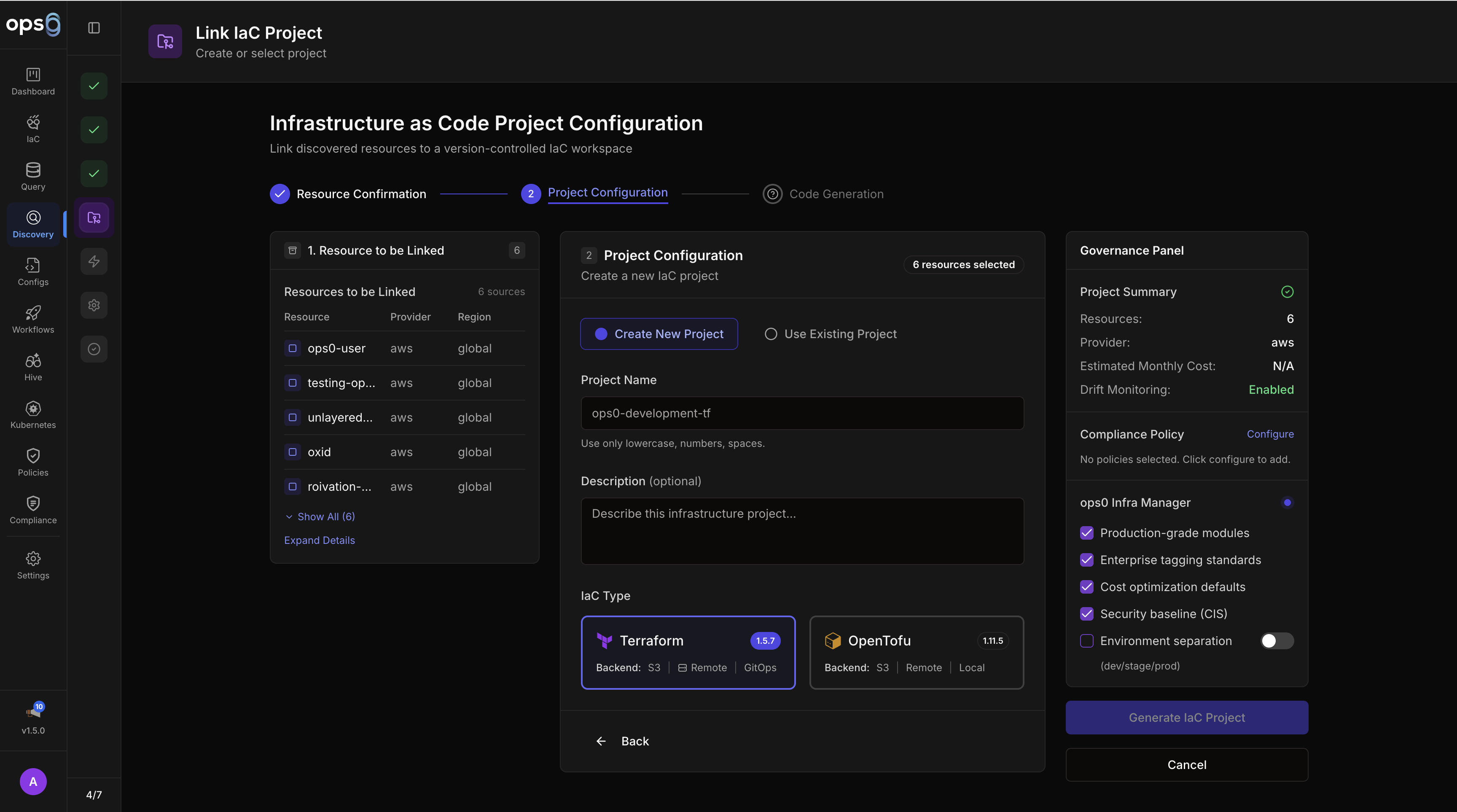
Create a new project in ops0 with the generated code already in place.
Download all generated files as a ZIP archive for local review or handoff.
Sync the generated code directly to a connected GitHub repository.
Push generated Terraform code directly to a connected GitHub repository:
Choose a connected GitHub repository from the GitHub sync modal.
Select an existing branch or create a new one.
Configure the directory path within the repository.
Enter a commit message (pre-filled with discovery context). Optionally check Create Pull Request to push to a new branch and open a PR for review instead of pushing directly.
ops0 commits and pushes the generated code to the repository.
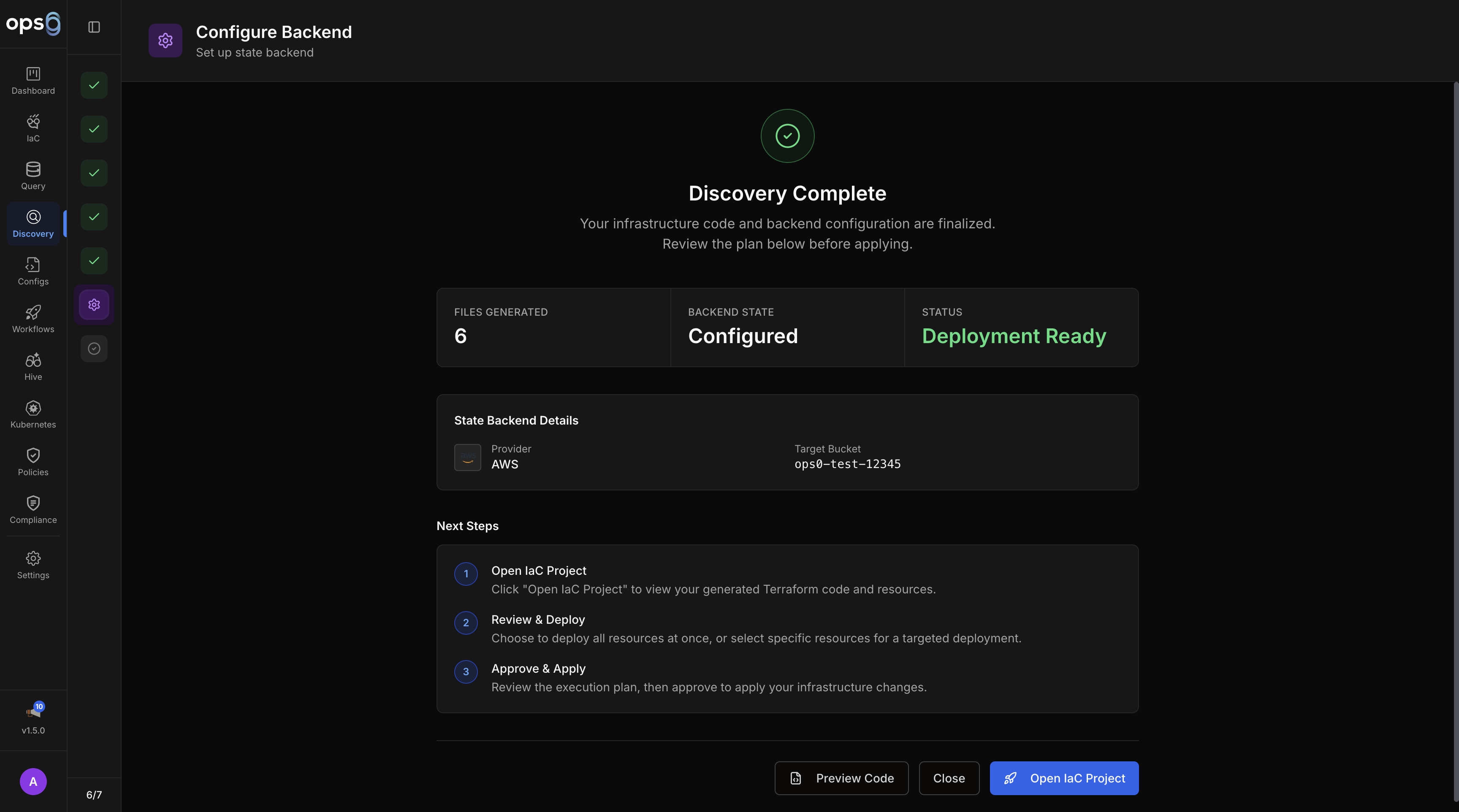
If the initial generation doesn't meet your needs, regenerate the code:
The resource may have been deleted or permissions may have changed. Re-run discovery to refresh the inventory.
The resource already exists in another Terraform state. Skip it here or remove it from the other state first.
Large batches can time out during AI generation. Split the import by resource type or environment.
Another process is holding the Terraform state lock. Wait for it to clear or force unlock if the lock is stale.
terraform plan after import to verify the result.
