ops0 supports GitLab as a version control provider alongside GitHub. You can sync IaC projects, configurations, and discovery assets to GitLab repositories, create merge requests, and manage branches directly from ops0.
| Feature | Description |
|---|---|
| Repository Sync | Push and pull IaC code to/from GitLab repos |
| Merge Requests | Create MRs with templated descriptions from ops0 |
| Branch Management | Create branches, switch between them |
| Multi-Purpose | Connect GitLab for IaC, Configurations, Discovery, or Assets |
| Self-Hosted | Supports self-hosted GitLab instances with custom URLs |
Go to Settings > Integrations > Add Integration.
Choose GitLab from the provider list.
Select the type of access token you want to use.
Provide your token and, if using a self-hosted instance, your GitLab URL.
Click Connect to verify the integration.
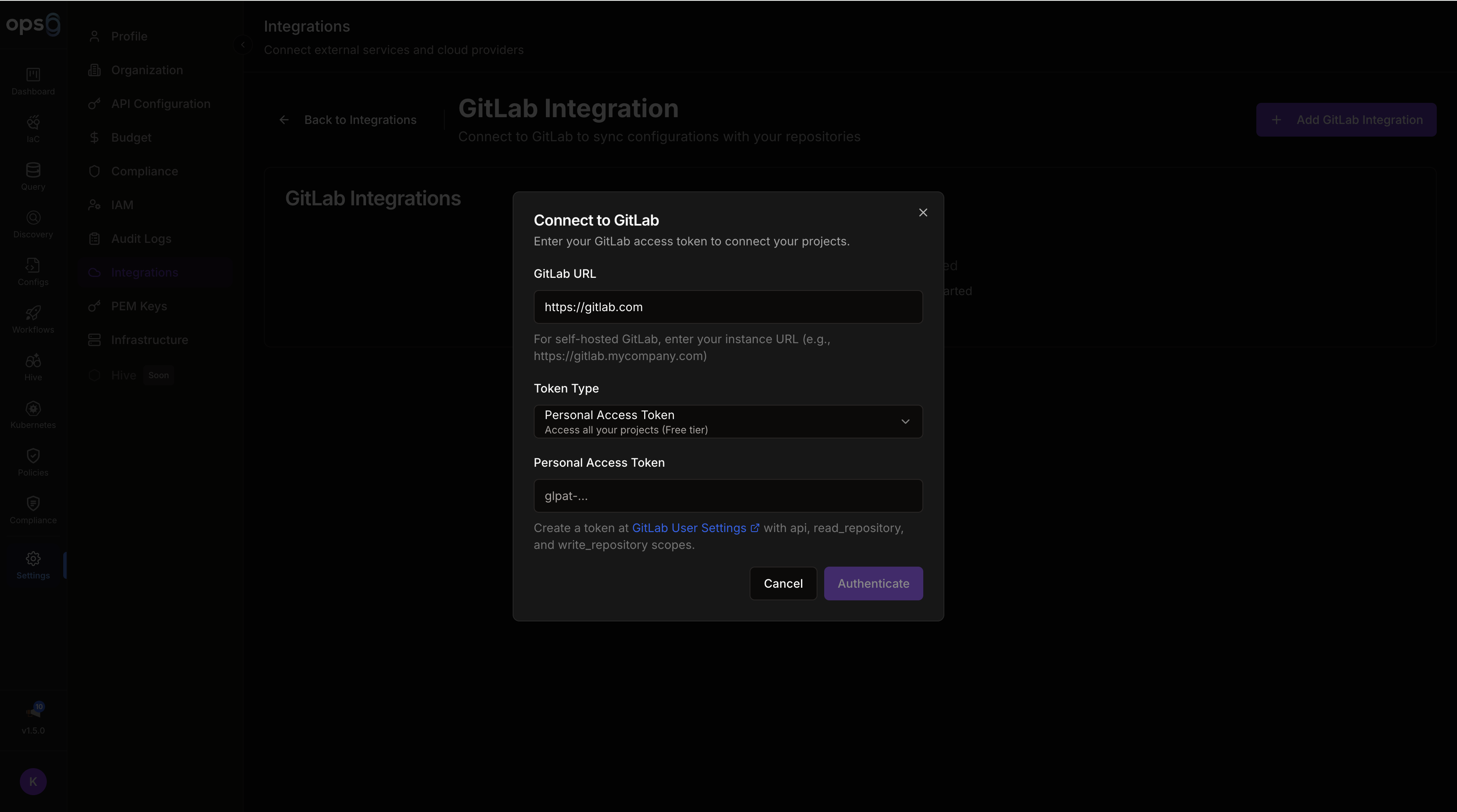
| Field | Required | Description |
|---|---|---|
| Name | Yes | Integration name |
| Token Type | Yes | Personal, Group, or Project |
| Access Token | Yes | GitLab access token |
| GitLab URL | No | Custom URL for self-hosted instances (defaults to gitlab.com) |
| Scope | Purpose |
|---|---|
| api | Full API access for repository operations |
| read_repository | Read repository content |
| write_repository | Push code and create branches |
If your organization runs a self-hosted GitLab instance, enter the full URL (e.g., https://gitlab.yourcompany.com) when adding the integration. ops0 will use the GitLab API v4 at that URL instead of gitlab.com.
Your self-hosted GitLab instance must be reachable from ops0's servers. If it's behind a VPN or firewall, ensure the appropriate network rules are in place.
After adding a GitLab integration, you can link it to IaC projects, configuration projects, or discovery sessions.
In your IaC or Configuration project, go to Settings > Version Control.
Choose your GitLab integration from the dropdown.
Browse your GitLab groups and select the target repository.
Set the default branch for syncing (e.g., main or develop).
Choose whether to push from ops0 to GitLab, pull from GitLab to ops0, or bidirectional sync.
When you sync changes from ops0 to GitLab, ops0 can automatically create a merge request with a templated description that includes the change summary, affected resources, and policy check results.
| MR Field | Auto-populated |
|---|---|
| Title | Change description from ops0 |
| Description | Resources changed, policy results, cost impact |
| Source Branch | ops0 working branch |
| Target Branch | Configured default branch |
All GitLab access tokens are encrypted at rest using AES-256-GCM encryption. Tokens are only decrypted in memory during API calls. ops0 never logs or displays tokens after the initial connection.

