Scan your cloud account, see everything running, and turn existing infrastructure into Terraform code — without recreating anything.
You have AWS resources running in your account that were created manually or by other tools. You want to:
Navigate to Discovery in the left sidebar. The overview page shows your previous scans and discovered resources.
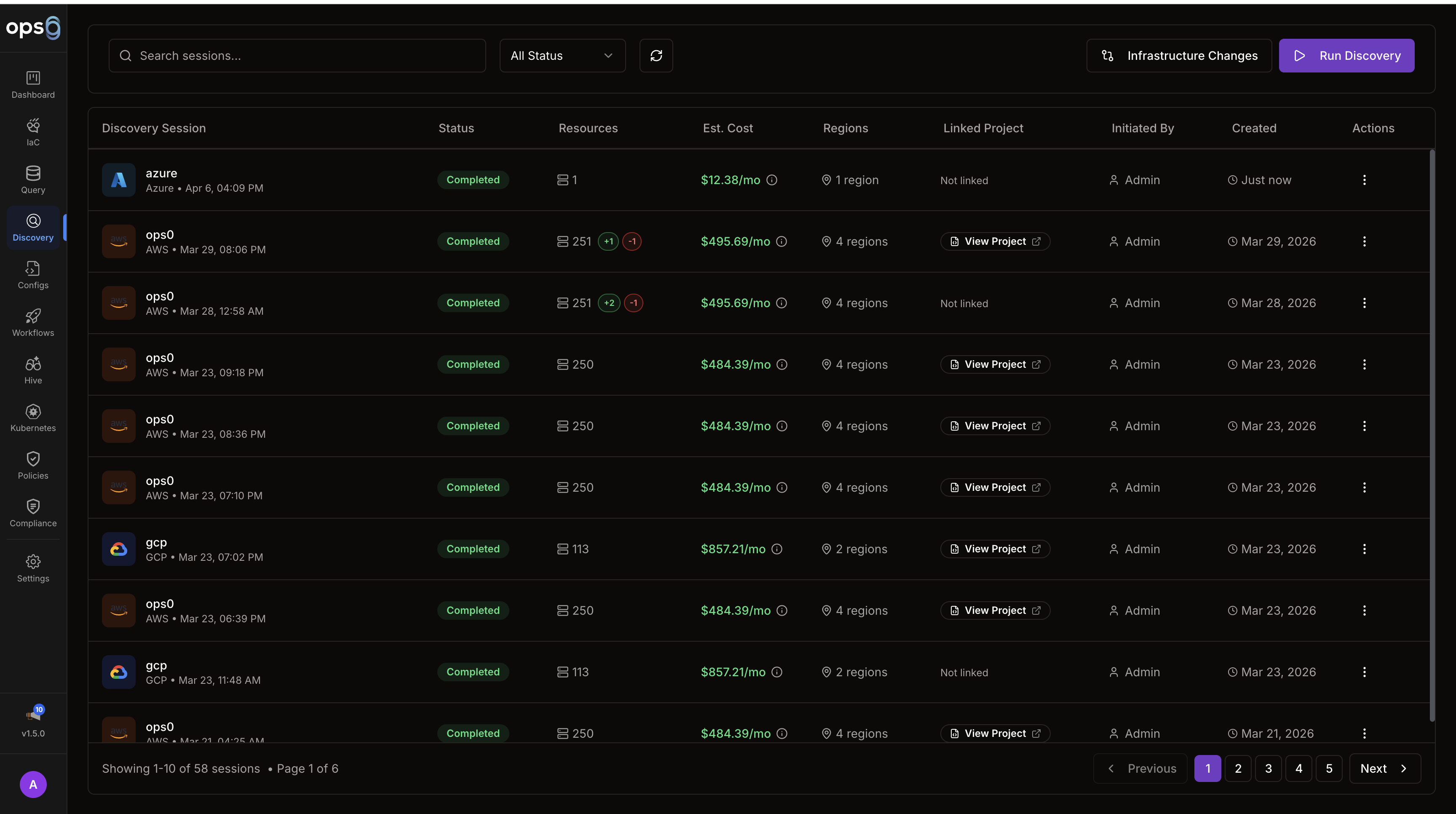
Click New Scan to open the discovery wizard, then select your cloud provider.
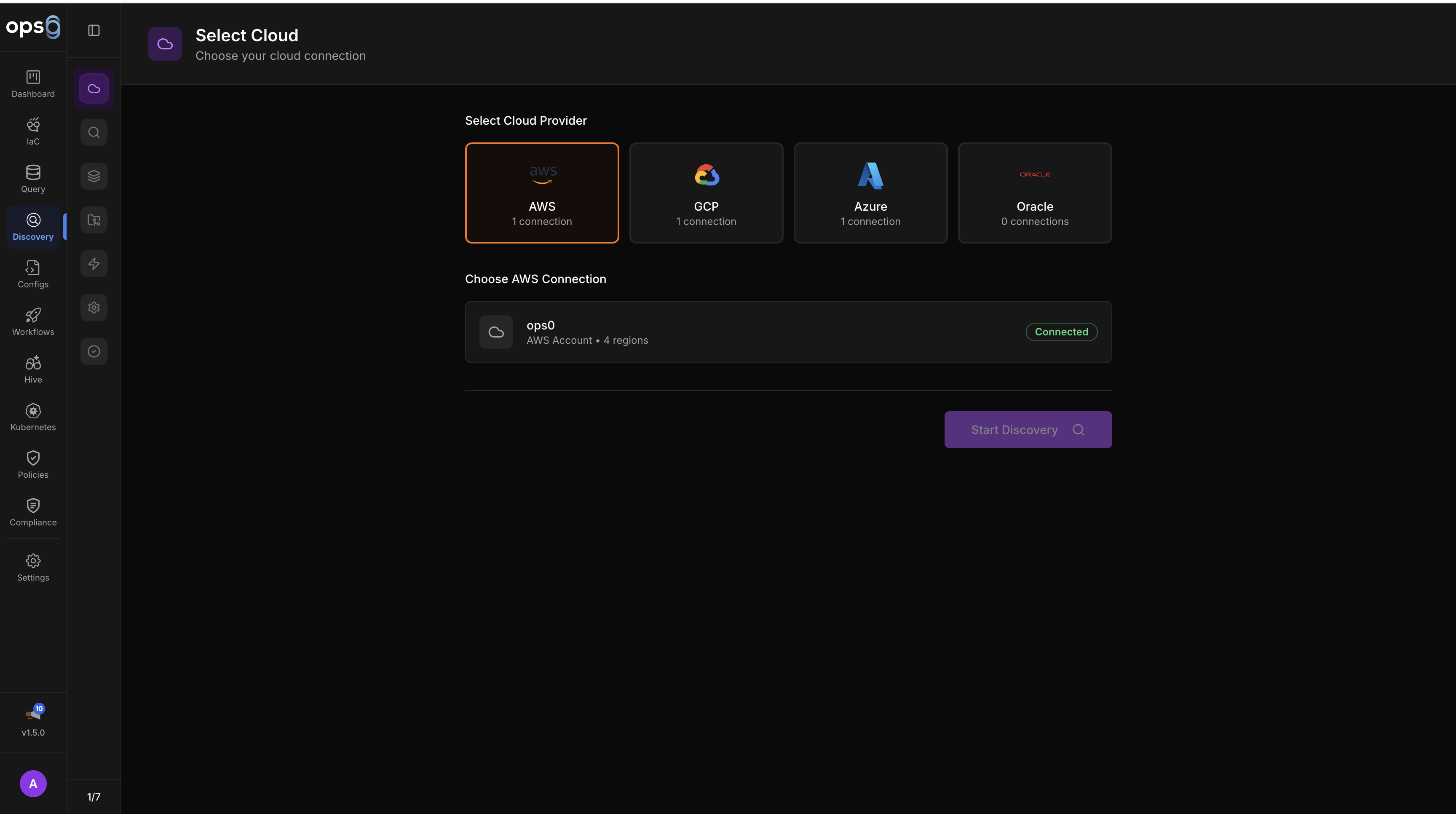
| Field | What to enter |
|---|---|
| Integration | Select the AWS integration you connected |
| Regions | Pick specific regions or select all (scanning all regions takes longer) |
| Resource Types | Leave as default ("Select Common") to scan EC2, VPC, RDS, S3, Lambda, and other common types — or choose specific types to narrow the scan |
| Field | What to enter |
|---|---|
| Integration | Select your GCP integration |
| Project ID | The GCP project to scan |
| Asset Types | Optional — filter to specific resource types |
| Field | What to enter |
|---|---|
| Integration | Select your Azure integration |
| Subscription ID | The subscription to scan |
| Resource Groups | Optional — limit to specific resource groups |
Click Start Scan when ready.
The scan runs asynchronously and streams results in real time.
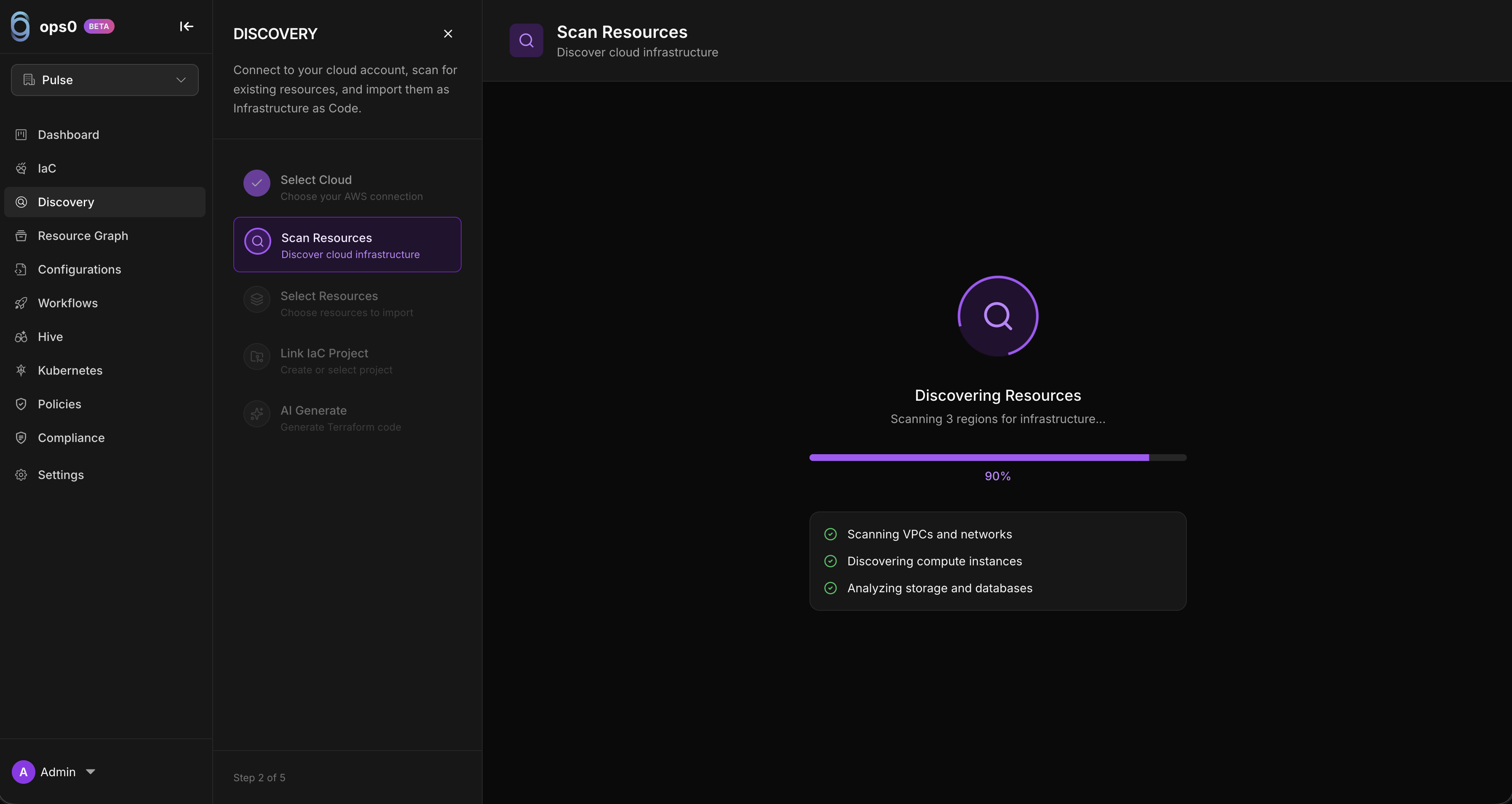
The progress view shows:
AWS scans typically complete in 1–5 minutes. You can leave this page and come back — the scan continues in the background.
When the scan completes, you see a full resource browser. Resources are grouped by type — EC2, VPC, RDS, S3, Lambda, and so on.
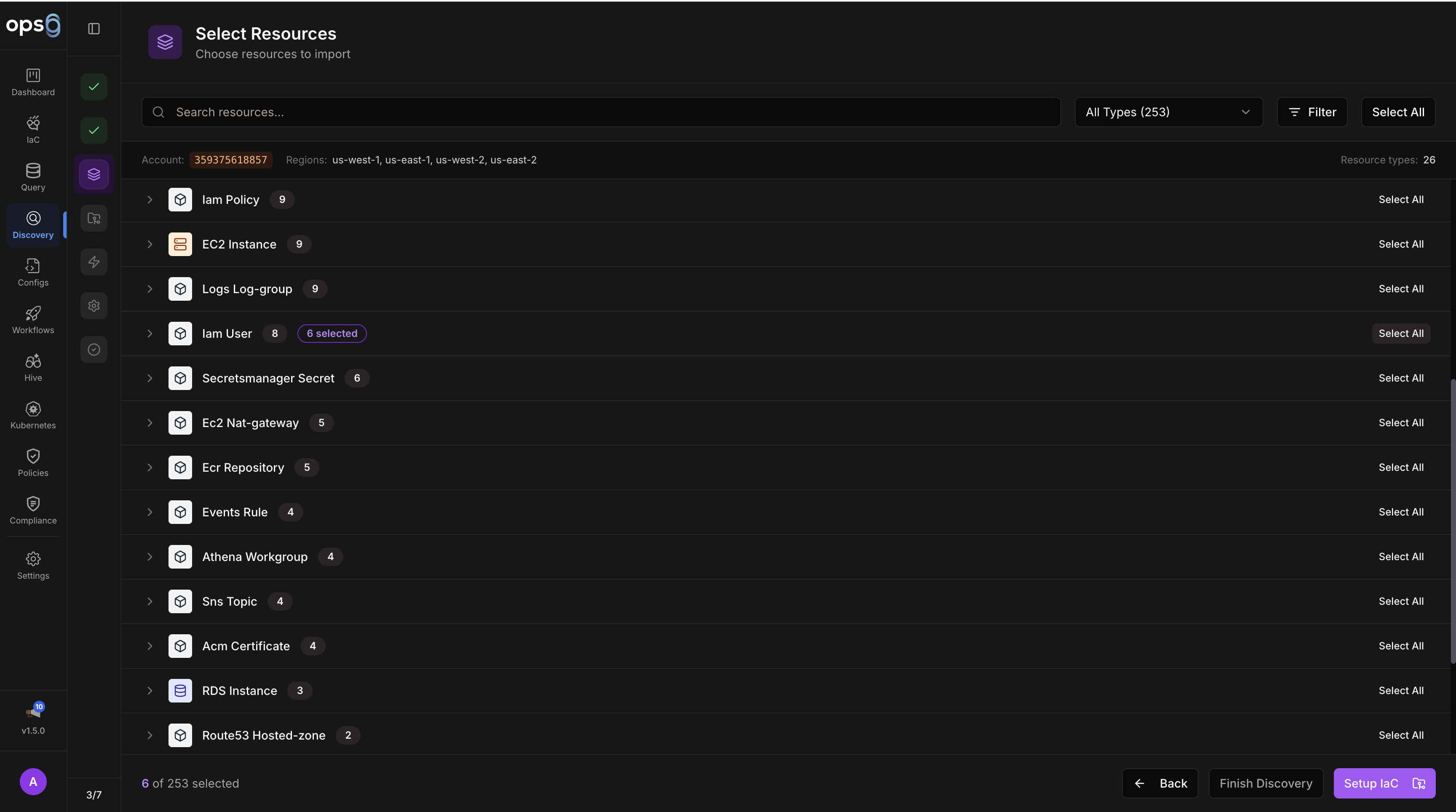
Use the filters to narrow down what you see:
Check the boxes next to the resources you want to import. You can select individual resources, all resources of a type, or everything from a region. Click Import Selected when ready.
Choose where the imported resources will live.
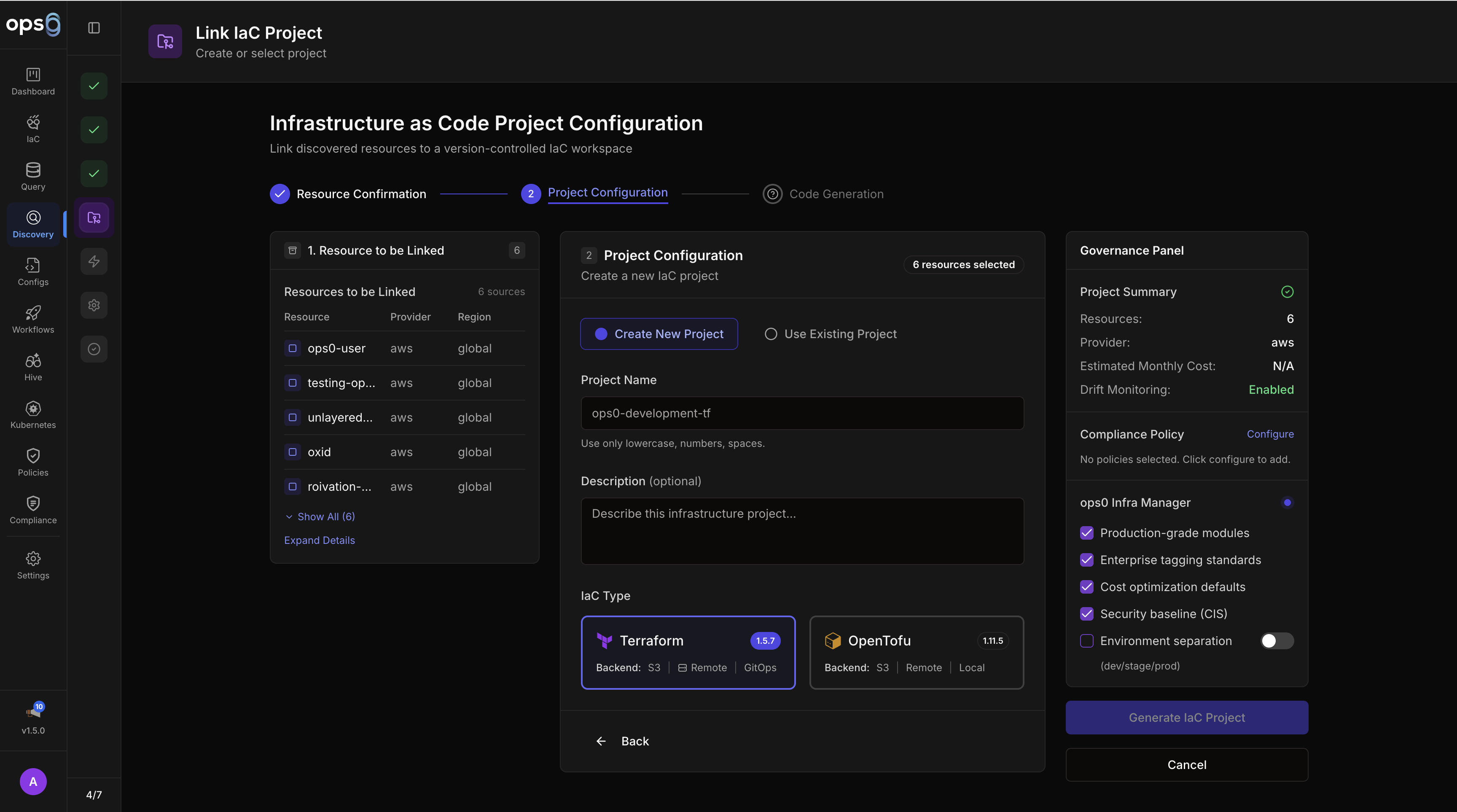
Tell ops0 where to store the Terraform state file for this project.
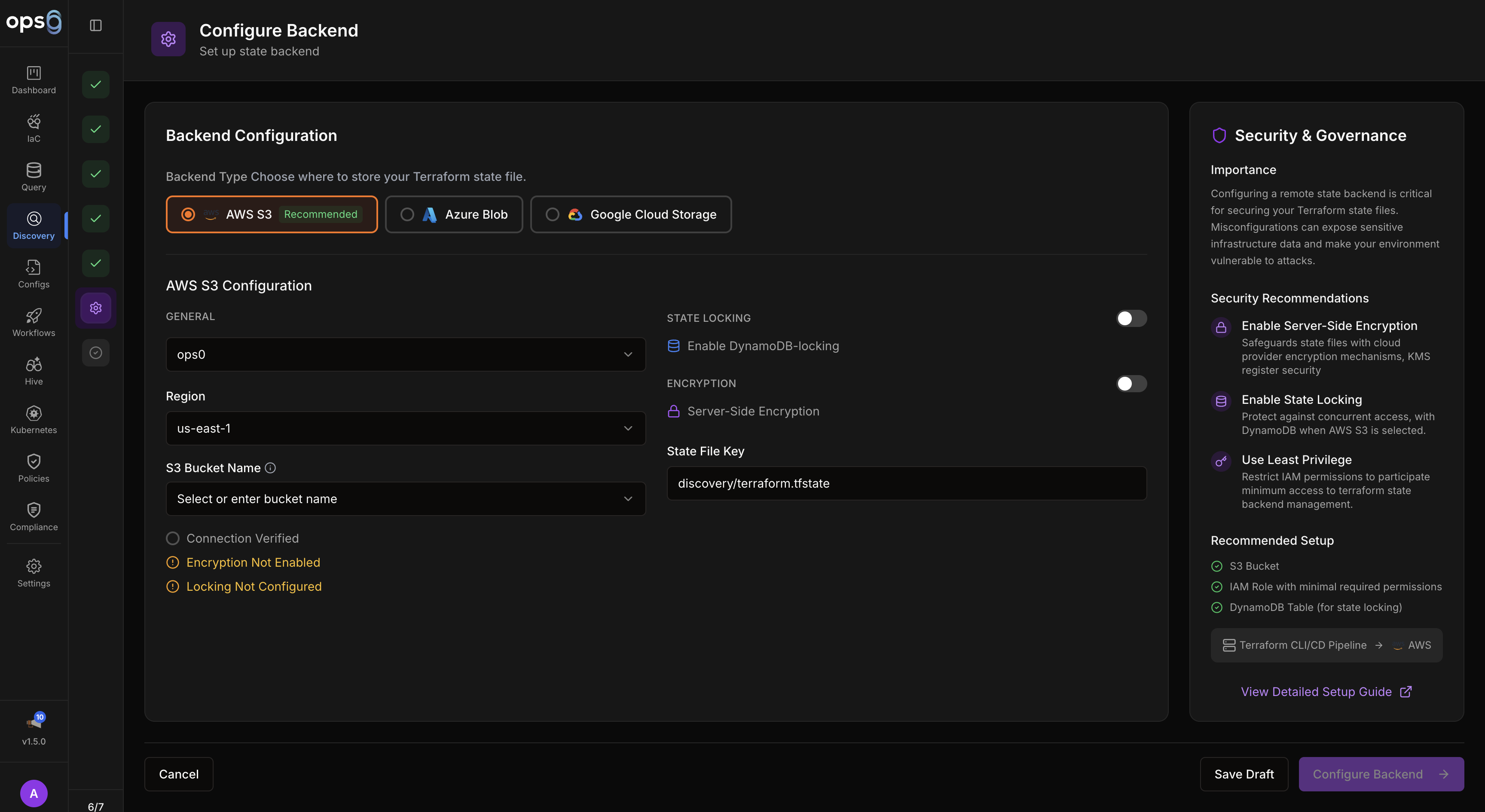
| Backend | Required fields |
|---|---|
| AWS S3 | Bucket name, key (path), region, optional DynamoDB table for locking |
| GCP GCS | Bucket name, prefix |
| Azure Blob | Storage account, container, blob key |
| Local | No configuration needed (not recommended for teams) |
Click Generate Code when done.
ops0 generates .tf files representing your selected resources in their current state.
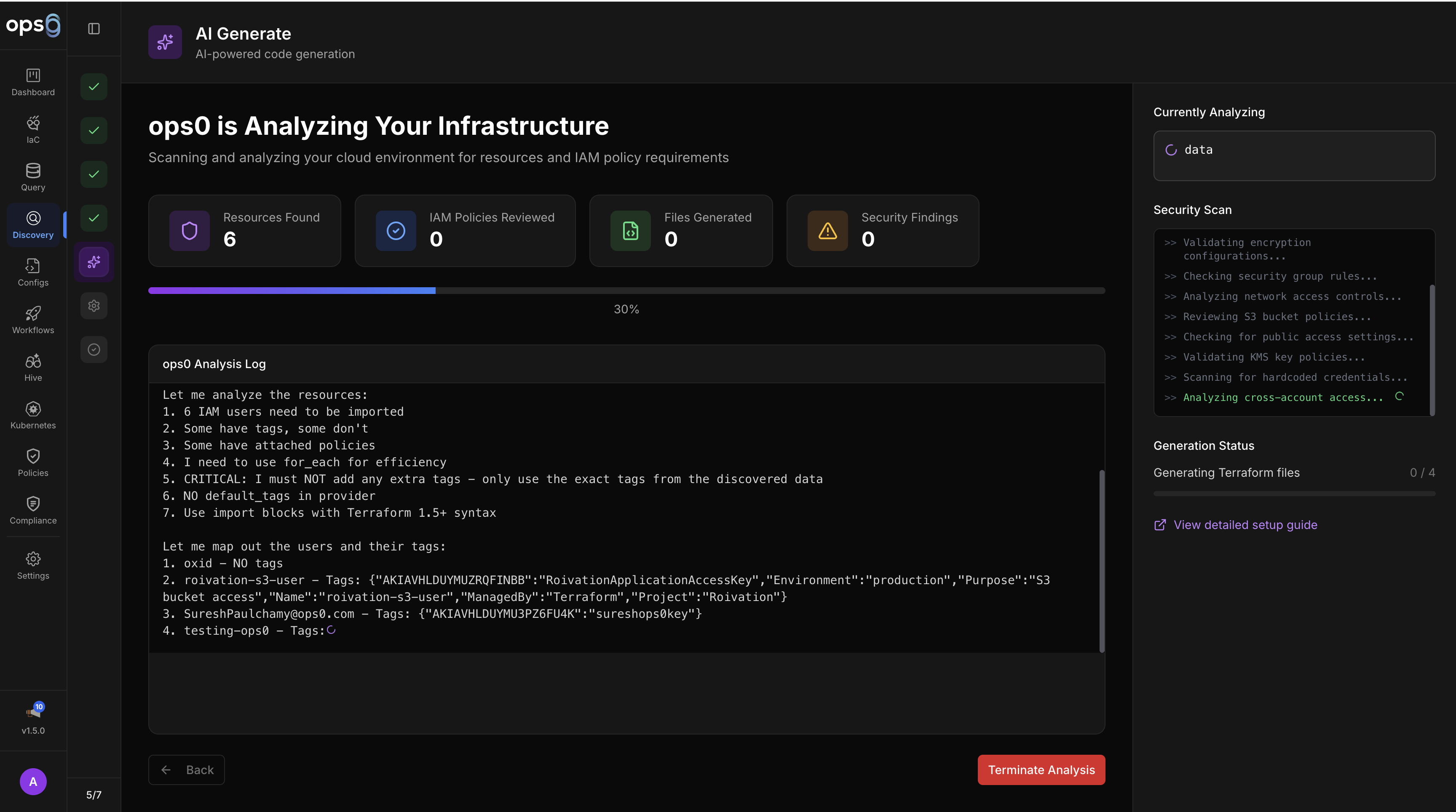
The editor shows the generated files:
main.tf — resource definitions matching your live infrastructurevariables.tf — extracted variablesbackend.tf — state backend configurationprovider.tf — provider and credentials configurationReview the code. You can edit it directly in the editor before completing the import. Once satisfied, click Complete Import.
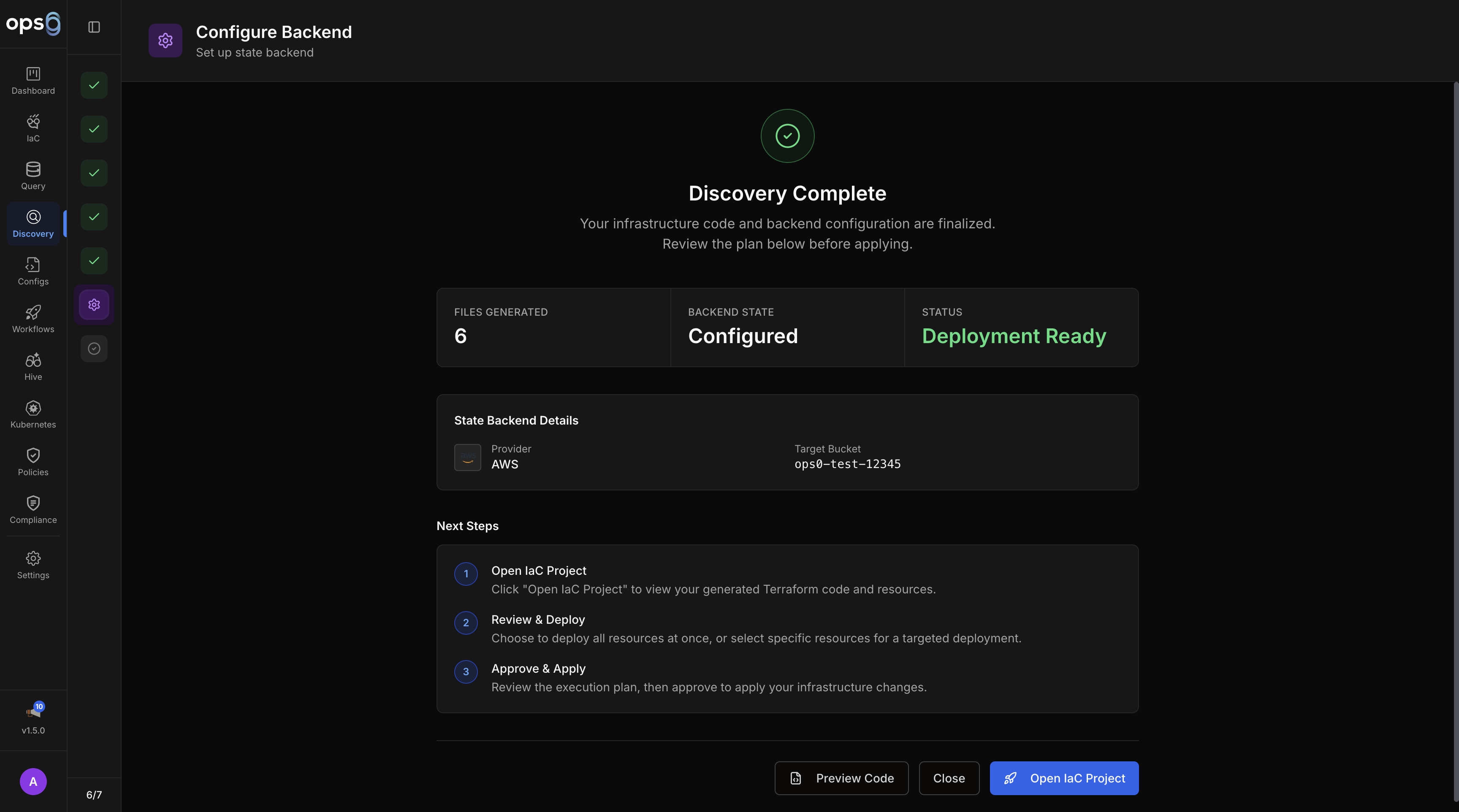
Your resources are now tracked in the IaC project. ops0 has:
Confirm everything is working:
A clean plan confirms ops0 accurately represents your current state. Any differences shown in the plan are real drift between the generated code and the actual resource configuration.
If you have a GitHub integration connected, push the generated code to version control:
.tf files to branch pulse-discovery-{timestamp}ReadOnlyAccess or equivalent. Ensure you selected the regions where your resources actually exist.
